Generative Resize
Generative Resize reshapes a single hero asset into every ad size you need. You pick one source image, add the target dimensions you want, and the system generates new renditions at each size — preserving the subject while filling any new canvas space with AI. Each target size produces multiple variations.
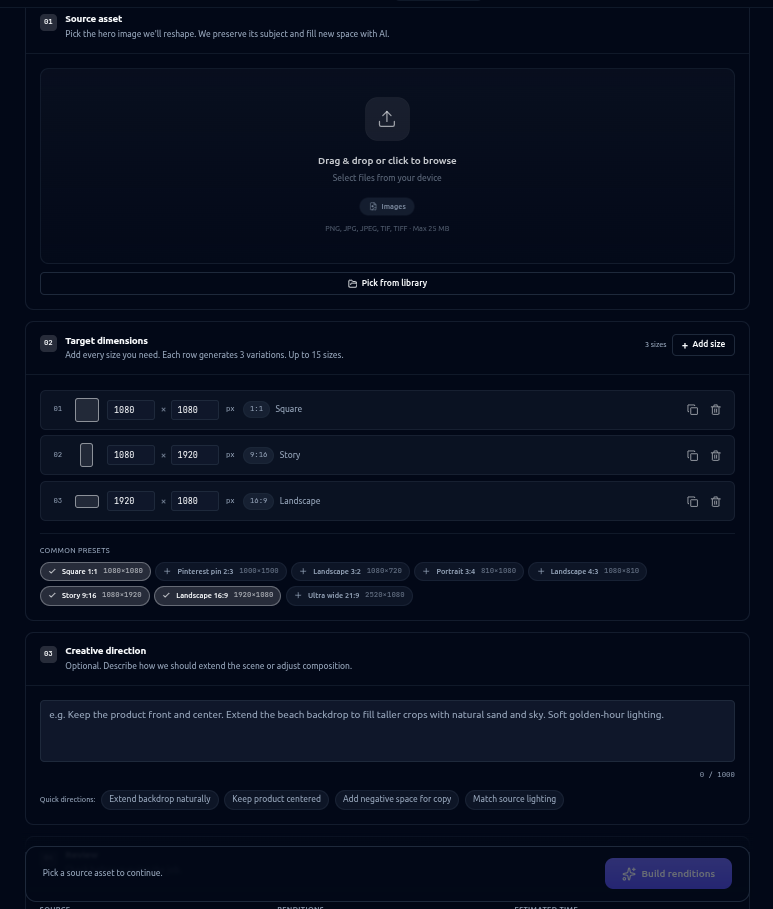
How It Works
You provide one source asset and a list of target dimensions. For each size, AI reshapes the image to the new aspect ratio — keeping the original subject intact and generating new background content to extend the scene where the canvas grows. This avoids awkward crops and lets one creative scale across every placement.
How to Use
Step 1 — Pick a Source Asset
Choose the single hero image you want to reshape. Its subject is preserved across every output, and new space is filled with AI.
Step 2 — Add Target Dimensions
Add every size you need as a list of rows. Each row is one target width × height.
- Add up to 15 sizes per job.
- Use presets for common formats, or enter custom dimensions.
- Each target size generates 3 variations.
Step 3 — Describe the Creative Direction (Optional)
Optionally describe how the scene should be extended or how composition should be adjusted — for example, where to leave negative space.
Step 4 — Build Renditions
Queue the job. Results surface in real time on the results screen, grouped by source asset. You can generate more variations or remove individual variants afterward.
Presets
Common target sizes are available as one-click presets:
| Preset | Dimensions |
|---|---|
| Square (1:1) | 1080 × 1080 |
| Story (9:16) | 1080 × 1920 |
| Portrait (4:5) | 1080 × 1350 |
| Landscape (16:9) | 1920 × 1080 |
| Wide banner | 1600 × 900 |
| YouTube thumb | 1280 × 720 |
| Meta feed | 1200 × 1200 |
| Pinterest pin | 1000 × 1500 |
Options
- Source Asset: 1 image
- Target Sizes: 1–15 per job
- Dimensions: 64–4096 px per side, up to 4,194,304 px (≈4 MP) per size
- Variations: 3 per target size
- Creative Direction: Optional, up to 1,000 characters
Best Practices
- Start from a strong hero image — the subject is preserved across every rendition, so quality carries through.
- Batch your sizes — add all the formats you need in one job instead of running separate resizes.
- Pick a different target than the source — a target that matches the source dimensions is flagged; choose a size that actually reshapes the image.
- Use creative direction for extensions — when a target is much wider or taller than the source, describe how to extend the scene for cleaner fills.
- For new scenes around a product, use Reimagine; for targeted edits to an existing output, use Resize & Fill.