Image to Video
Generate a video clip that begins from a start-frame image. Describe the camera, scene, subject, action, environment, style, and lighting you want, and optionally generate audio inside the clip.
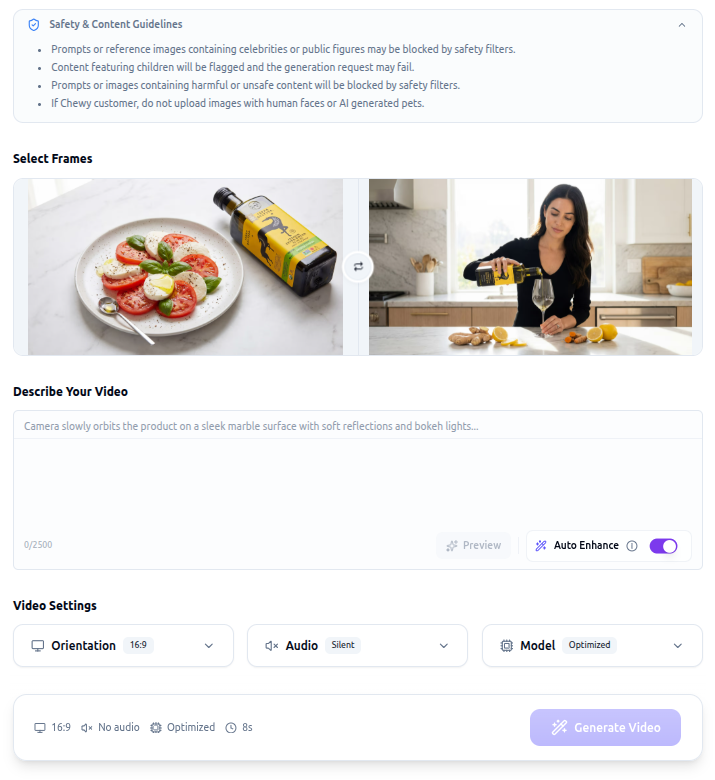
How It Works
AI generates a video clip beginning from the selected or uploaded Start Frame Image. You can prompt a detailed description of the video — camera, scene, subject, action, environment, style, lighting — and optionally generate audio within the video.
How to Use
Step 1 — Select or Upload a Start Frame Image
Select an image and click Next. This image will be used as the start frame of the generated video. Pick an image that will lively and naturally start moving.
You may open gallery tabs My Assets (images previously uploaded to the brand), Text to Image, Reimagination, or Scene Forge (AI-generated images), and select an image.
Alternatively, click Upload Asset to upload your own start frame image (PNG or JPEG).
Best Practices
- Aspect ratio (recommended): 16:9 (landscape) or 9:16 (portrait).
- Resolution (recommended minimum): 1920×1080 (landscape) or 1080×1920 (portrait).
- Avoid images with children, minors, or celebrities. Video generation may be blocked by AI content-safety filters.
Step 2 — Set Parameters
- Orientation: Select the video aspect ratio — 16:9 (landscape) or 9:16 (portrait).
- Note: Walmart video campaigns only accept 16:9 aspect ratio.
- Audio: Toggle Enable Audio if needed (default: OFF).
- Video Model: Select the AI video generation model. Default: Optimized. See Video Models below.
Video Models
Choose the model that best fits your quality, speed, and length needs. Optimized is the default and a good starting point. Each model shows its quality, speed, and default length in the selector.
| Model | Quality | Speed | Default Length |
|---|---|---|---|
| Optimized (default) | Premium | Standard | 8s |
| Seedance 2.0 | Premium | Standard | 8s or 15s |
| Kling 3.0 Omni Pro | Premium | Slow | 15s |
| Veo 3.1 | Premium | Standard | 8s |
| Grok Imagine Video | High | Fast | 15s |
Notes:
- Duration: Only Seedance 2.0 lets you choose the length (8s or 15s). All other models use a fixed length.
- End Frame: All models except Grok Imagine Video support an optional end frame for start-to-end interpolation.
- Prompt enhancement is available on Optimized and Veo 3.1.
Step 3 — Write your Prompt
Describe the video you want to generate as precisely as possible in the Text Prompt.
Limitations
- Max 2,000 characters.
- Avoid children, minors, or celebrities. Video generation may be blocked by AI content-safety filters.
Best Practices — structure these elements
- Camera:
- Composition: e.g., "wide shot", "close-up".
- Angle: "eye level", "low-angle", "high-angle".
- Motion: e.g., "dolly", "pan", "zoom in", "stationary", "arc shot", "chase".
- Lens Effects: "shallow depth of field", "sharp focus", "focused on product".
- Scene: e.g., "no scene transitions/cuts", "keep full subject in frame throughout the entire video".
- Subject: what/who the main product or character is. If they already appear in the Start Frame Image, only add necessary details to avoid contradictions.
- Action: what the subjects are doing.
- Environment / Background.
- Style: e.g., "photorealistic", "cinematic", "live action".
- Lighting: e.g., "natural soft indoor lighting".
- Audio (if enabled):
- Dialogue: use quotation marks for specific speech (e.g., The woman excitedly says "I'll come again!").
- Ambient Sound: e.g., "wind calmly blowing", "chats in a cafe".
- Sound Effects (SFX): e.g., "thunder in the distance".
- BGM: background music type. Prompt "No BGM" if BGM is not wanted.
Align Prompt with Start Frame Image — the prompt needs to align with the selected or uploaded Start Frame Image. Avoid prompts that contradict the image (e.g., prompting "sunlight" while the image looks indoors). Video AI may get confused and produce sudden, unintended scene transitions.