Reimagine
Reimagine generates a new scene around your product while preserving the product exactly as it appears. You mask the product to protect it, describe the environment you want, and the system creates multiple variations with the product unchanged.
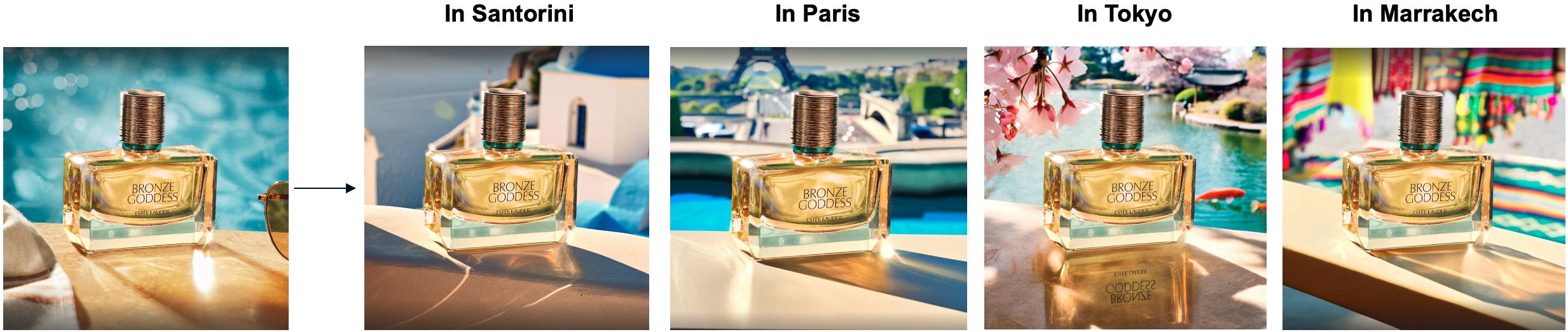
How It Works
AI generates a new scene around your product while preserving the product exactly as it appears. You mask the product area to protect it, describe the environment you want, and the system creates multiple variations with the product unchanged.
How to Use
Step 1: Upload Product Image
Upload 1 product photo (PNG recommended). Use a sharp image with at least 1000 px per dimension.
Step 2: Mask the Product
Protect the product so it remains unchanged.
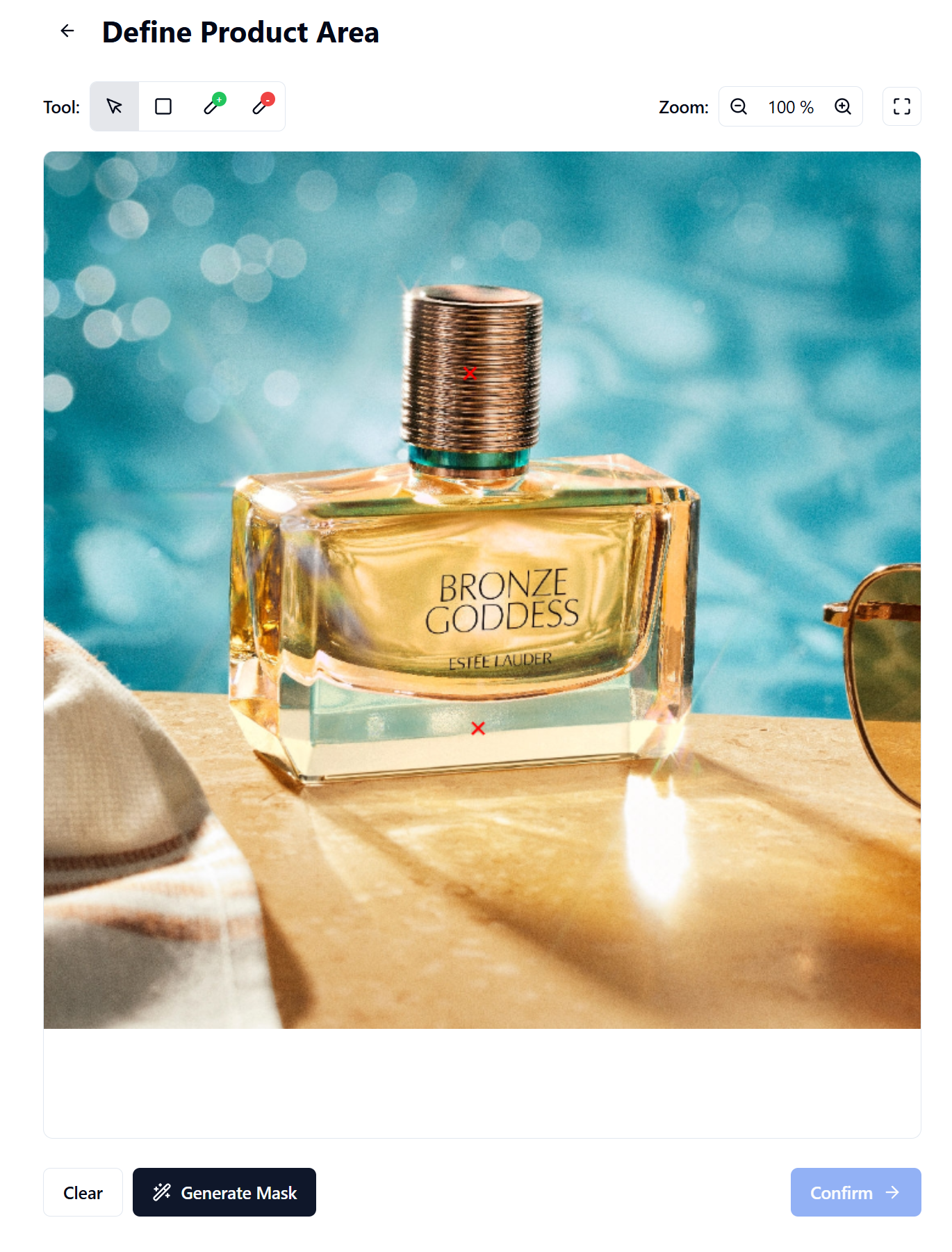
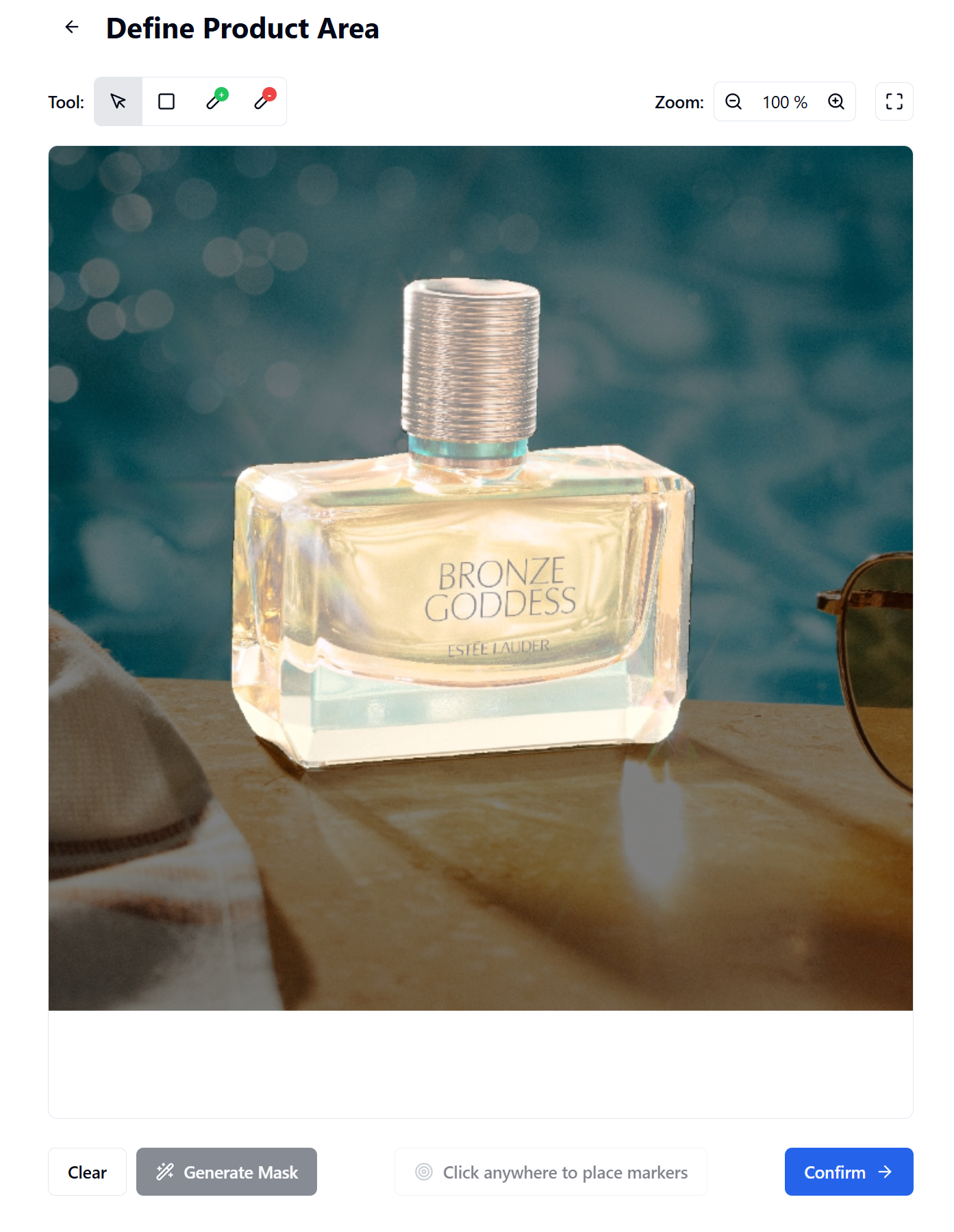
- Use the Point Tool to click on your product, or use the Brush tools to paint the mask.
- Click Generate Mask (10–20 seconds).
- A white overlay shows the protected area.
- Click Confirm, polish your mask and re-generate, or Clear to retry.
Step 3: Describe the Scene
Write a prompt for the background or environment.
Example prompts:
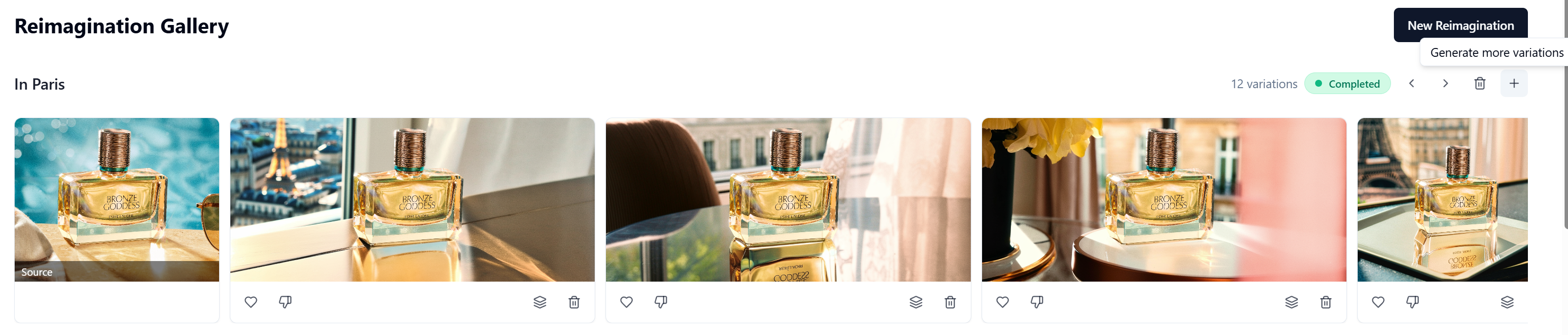
"In Paris" or "On a marble countertop with soft natural lighting."

Step 4: Generate
- Click Reimagine (1–2 minutes).
- Click Generate More Variations for additional results.
Options
- Product Image: 1 image
- Mask Tools: Point, Brush+, Brush−
- Prompt: Up to 1,000 characters
- AI Style: Multiple visual styles
- Auto-Enhance: AI can refine your prompt. You can preview, edit, accept, or disable it before generating.
- Canvas: Control the generated image framing:
- Resize: 100–4096 px per dimension for input image.
- Crop: Remove pixels from your input image.
- Padding: Extend the canvas (generate more pixels).
Best Practices
- Use PNG to avoid compression artifacts.
- Create a precise mask for cleaner results.
- Avoid output larger than ~200% of the original image.
- Describe the background, not the product.
- Preview Auto-Enhance before generating.
- For human figures and complex scenes, use Scene Forge instead of Reimagine.