Compose
Compose lets you design reusable, layered ad templates — background, images, logo, text and shapes — and then fill them with your images and copy to produce finished creatives at scale. Change the image or the text, keep the layout.
Compose is built for desktop screens.
Templates
Open Compose → Templates.
Create a template
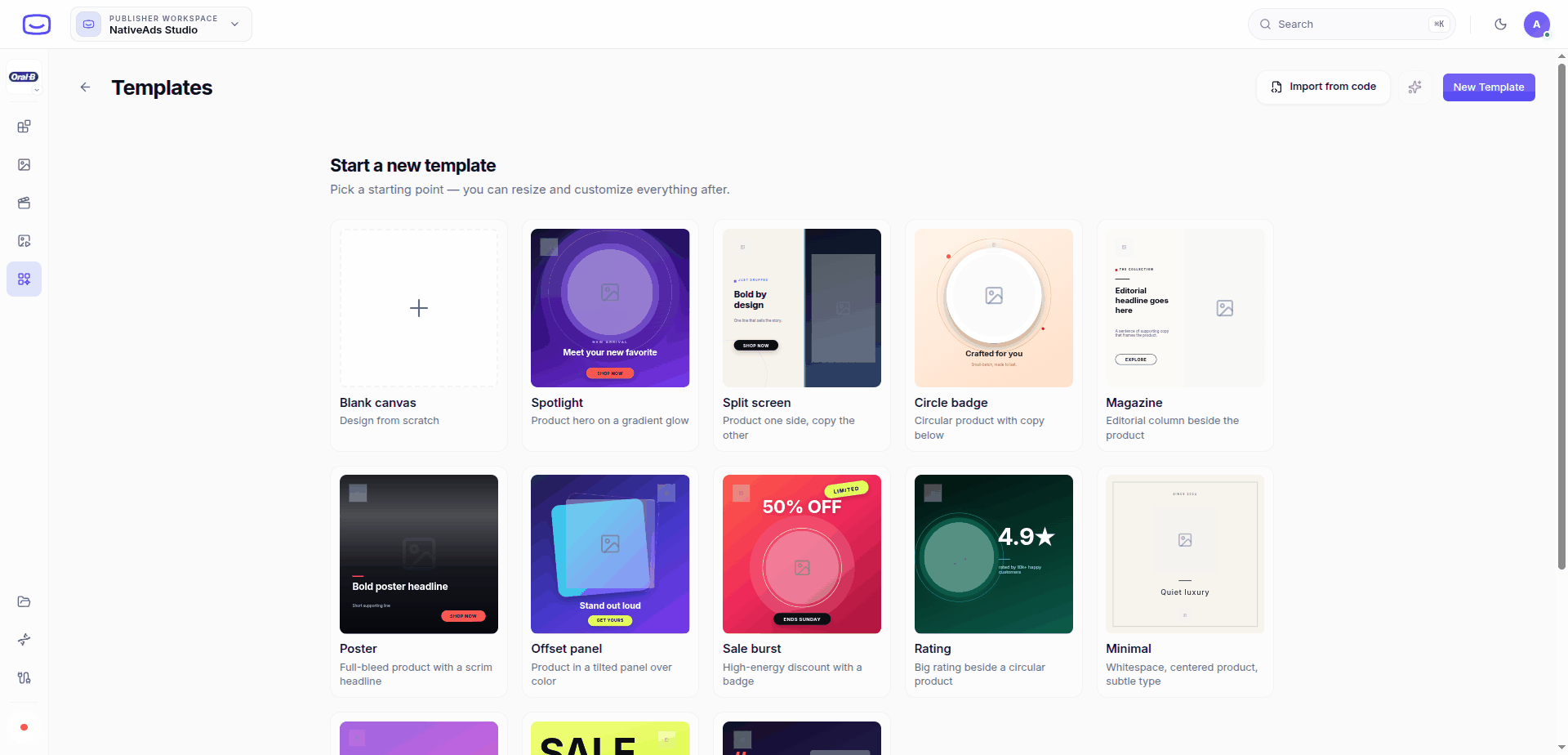
Click New Template and choose a canvas size:
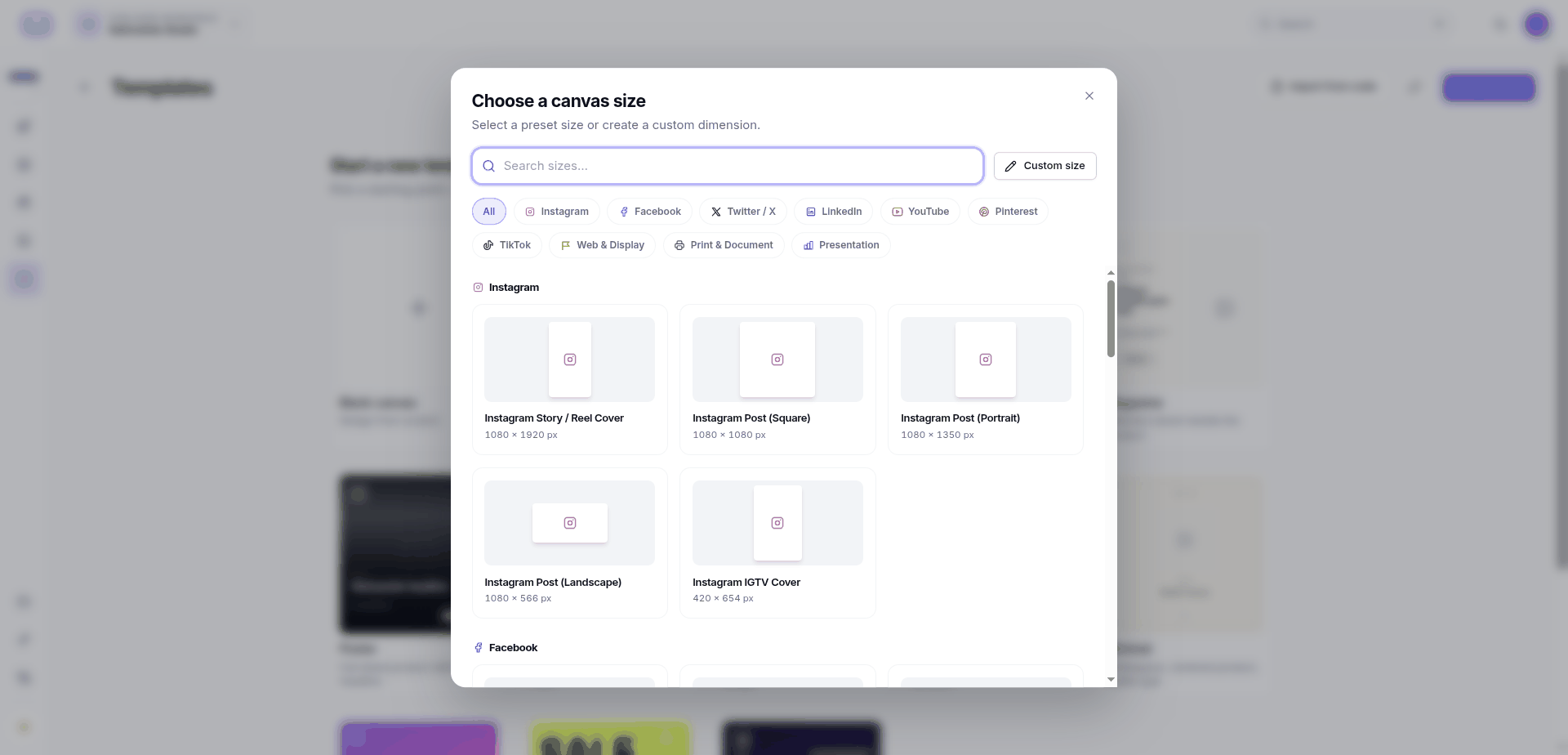
- Presets for Instagram, Facebook, X (Twitter), LinkedIn, YouTube, Pinterest, TikTok, web banners, print and presentations.
- Custom size from 20 to 4096 px per side.
If you don't have any templates yet, the page shows Start a new template: pick Blank canvas or a starter layout such as Spotlight, Split screen, Magazine, Poster or Sale burst, then choose a canvas size.
You can also use the ▾ menu next to New Template to Import from code — paste or upload a template's code (JSON).
Design the template
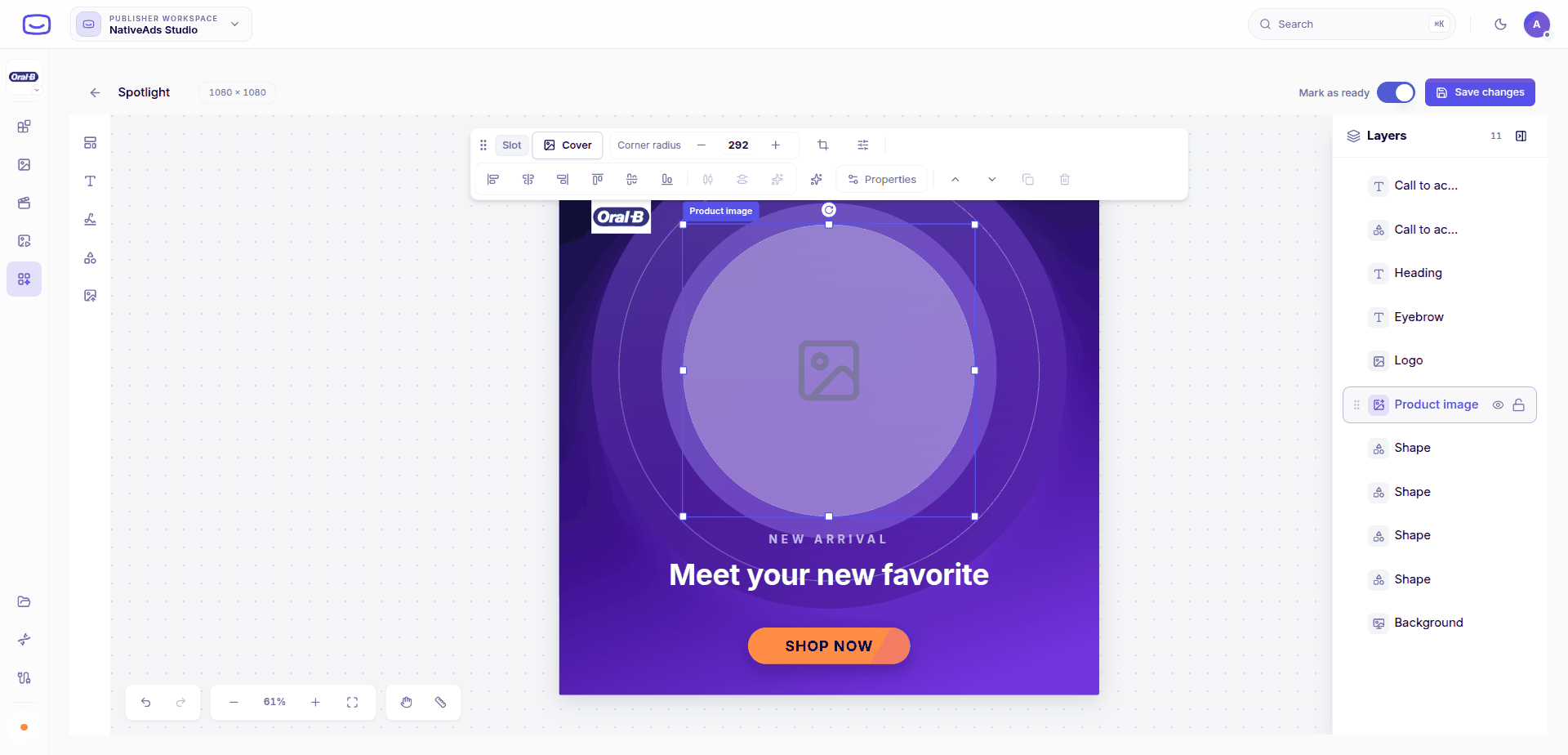
The template studio opens with your canvas in the middle, the tool rail on the left and the Layers panel on the right (click the layers icon to show it). Your brand logo is placed automatically when the layout has a logo.
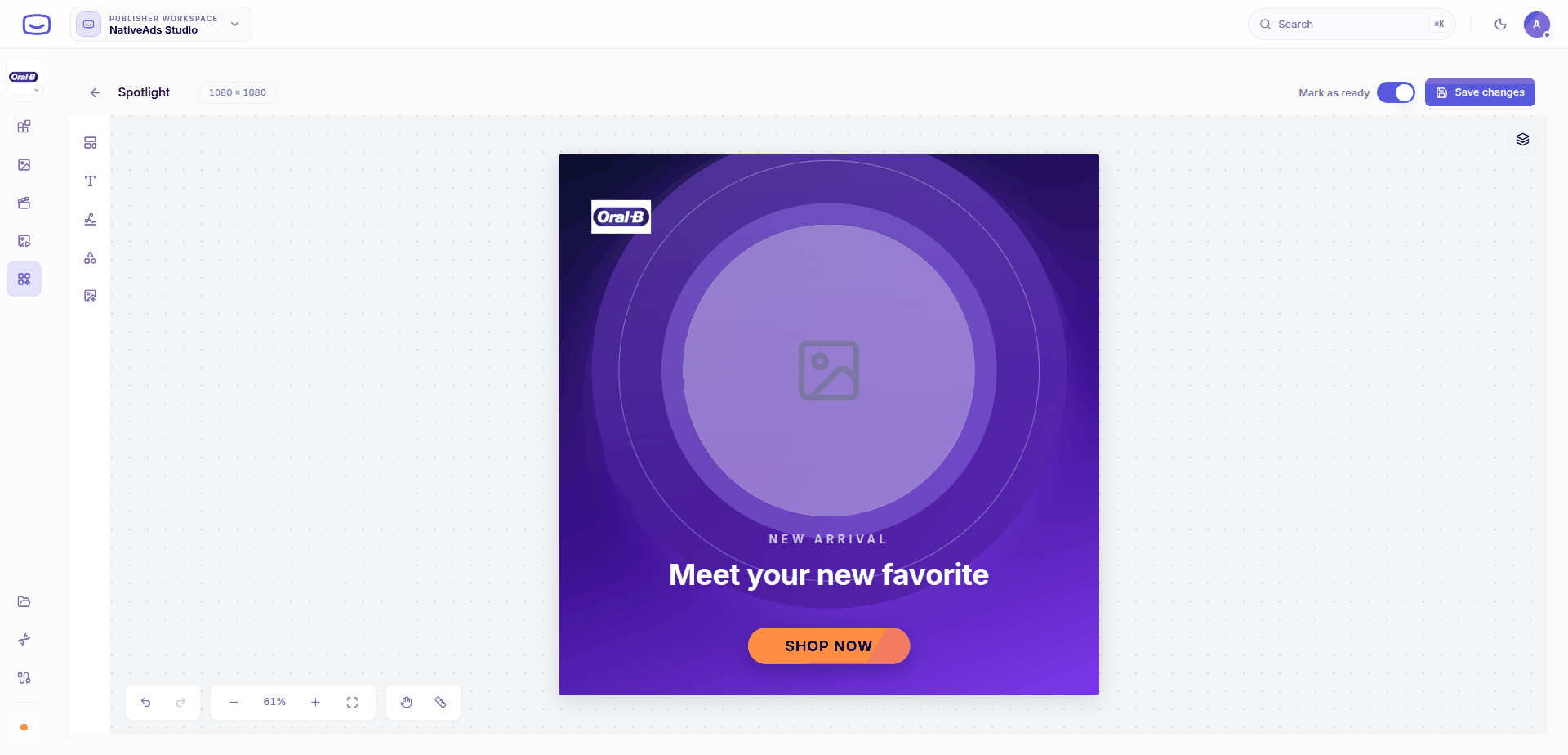
The tool rail adds content to the canvas: Templates (switch to another starter layout), Text (heading, title, subheading, body, quote, eyebrow and caption styles), Logo, Shapes and Uploads. Each layer is a background, product image, image, text or shape. Use the bottom bar to undo and redo, zoom, fit to view, pan and show rulers.
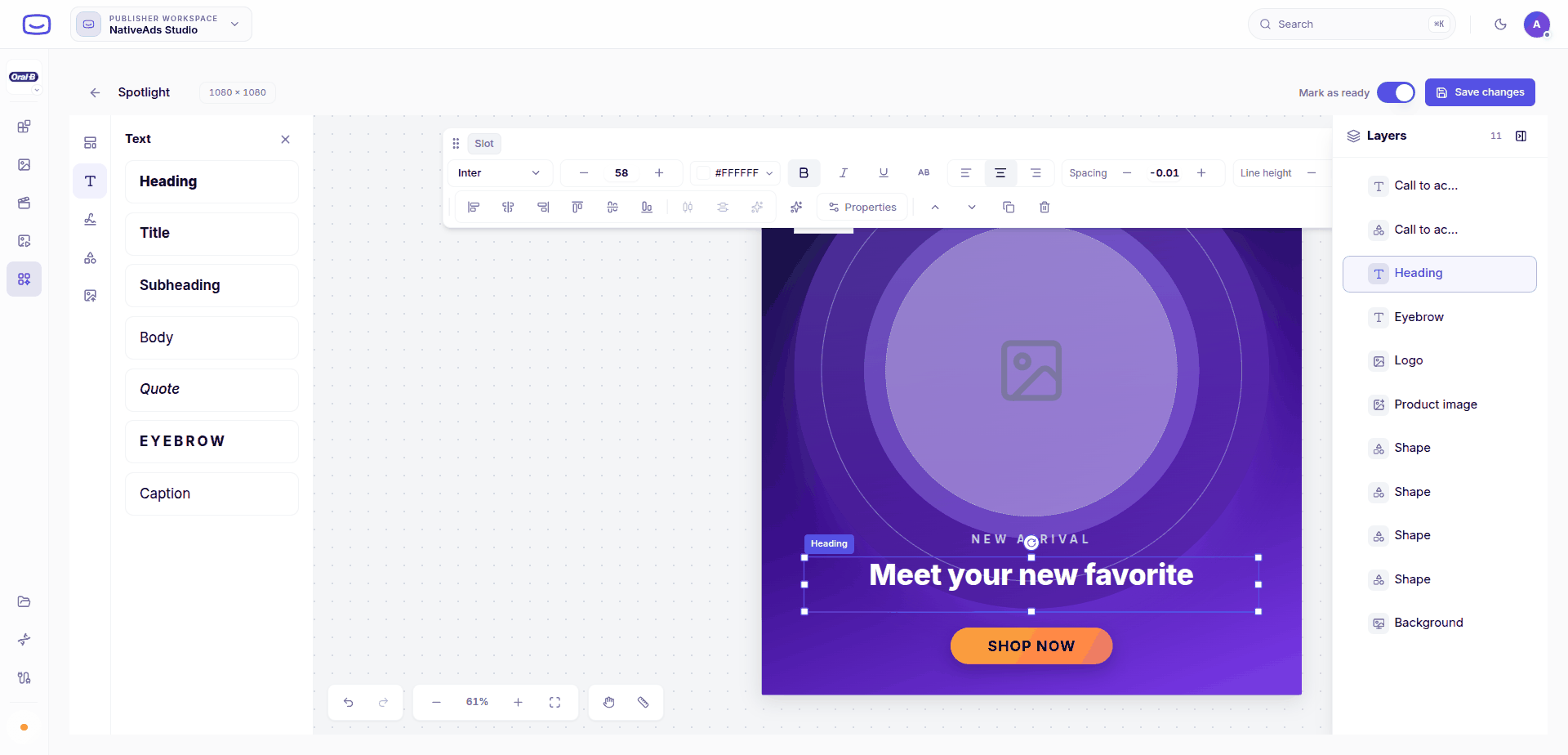
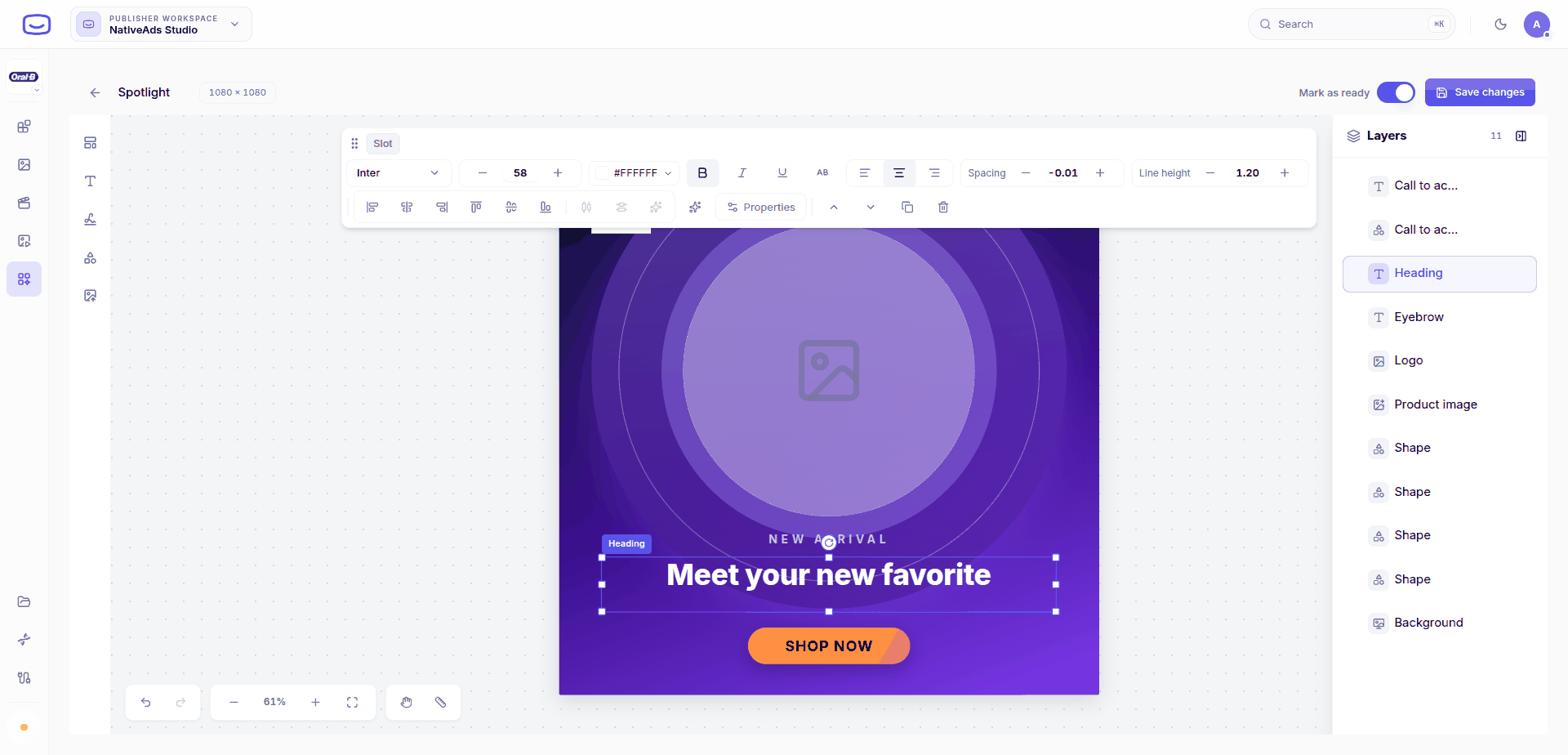
Click a layer on the canvas or in Layers to select it. A toolbar appears above it:
- Images: choose Cover or Contain fit, corner radius, crop, and a filter (Black & White, Blur, Cool, Fade, Vivid or Warm).
- Text: font (from the catalogue, or upload your own — WOFF2, WOFF, TTF or OTF, up to 10 MB), size, color, bold, italic, underline, uppercase, alignment, letter spacing and line height.
- All layers: align and distribute, bring forward or send back, duplicate and delete. Use the eye and lock icons in Layers to hide or lock a layer.
Slots
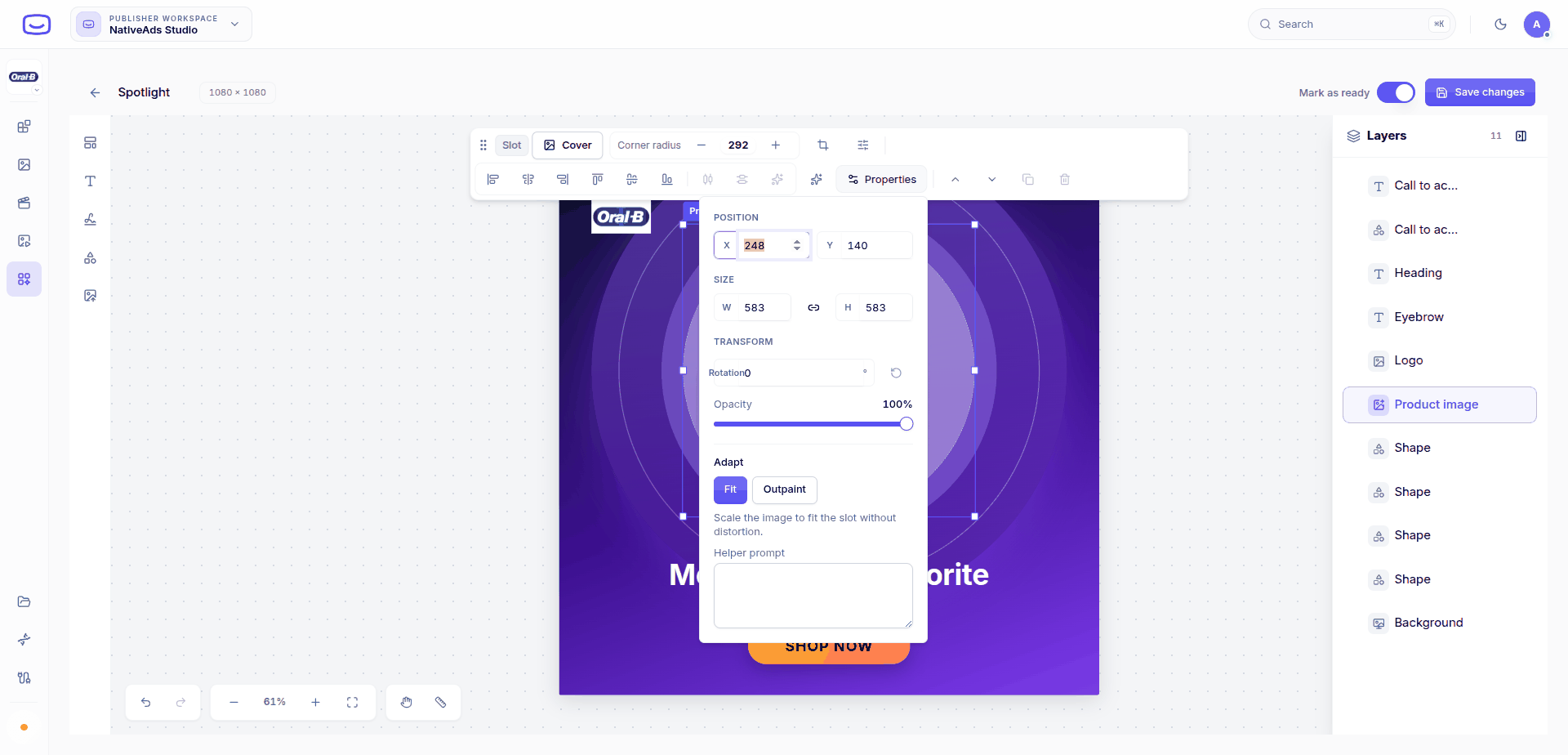
Layers marked Slot are filled when the template is used. Click Properties in the toolbar to set a layer's position, size, rotation and opacity, and its slot settings:
- Image slots — under Adapt, choose Fit (scale the image to fit without distortion) or Outpaint (extend the image with AI to fill the slot), and add an optional helper prompt. A logo slot is an image slot bound to your brand logo.
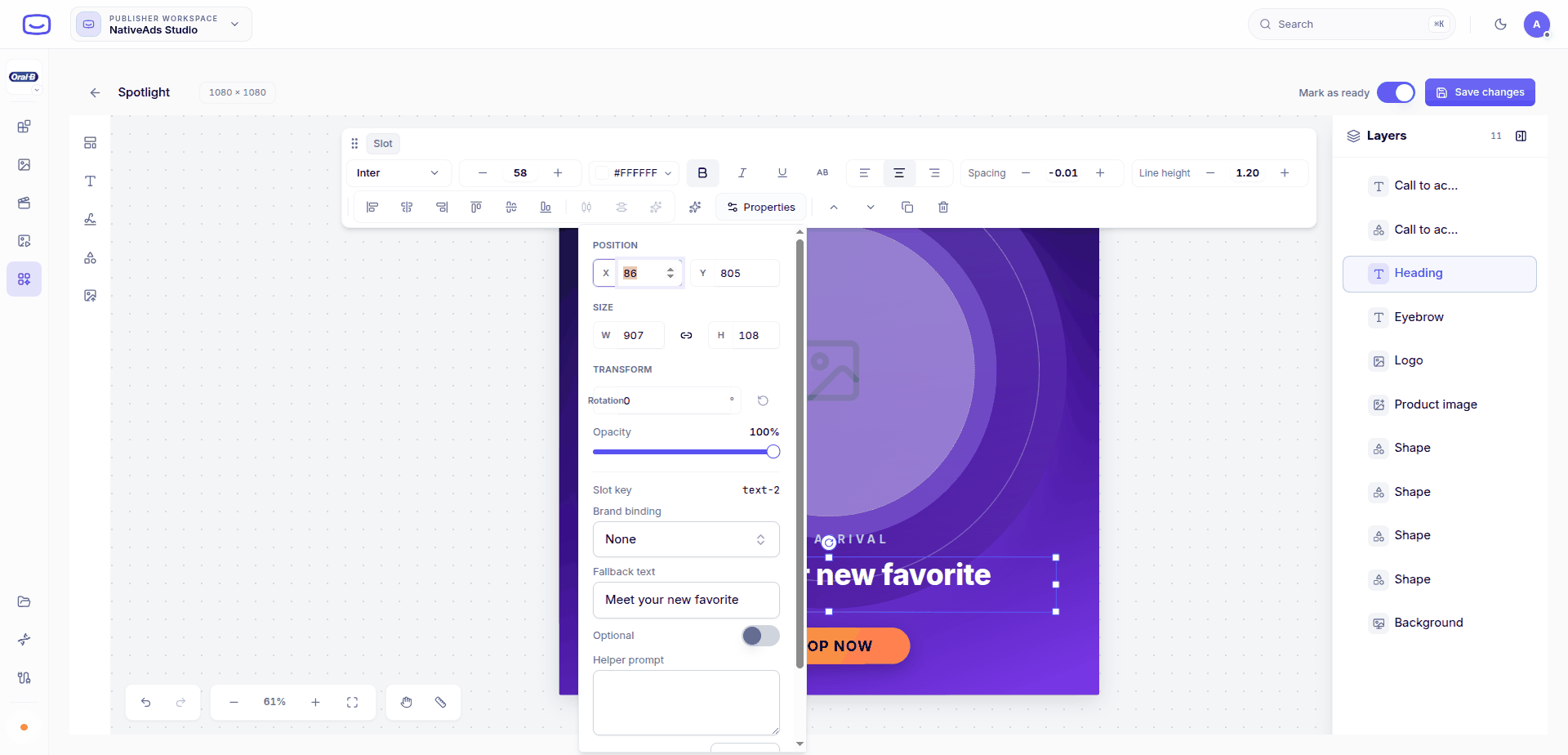
- Text slots — set a Brand binding (fill it from your brand), Fallback text, whether it's Optional, a Helper prompt that tells the AI what to write, and a Min length and Max length.
Click Save changes to save the template.
Mark it as ready
A template can only be used once it's ready. Switch Mark as ready on beside Save changes — every text slot needs a binding or fallback text first. You can set a template back to draft at any time.
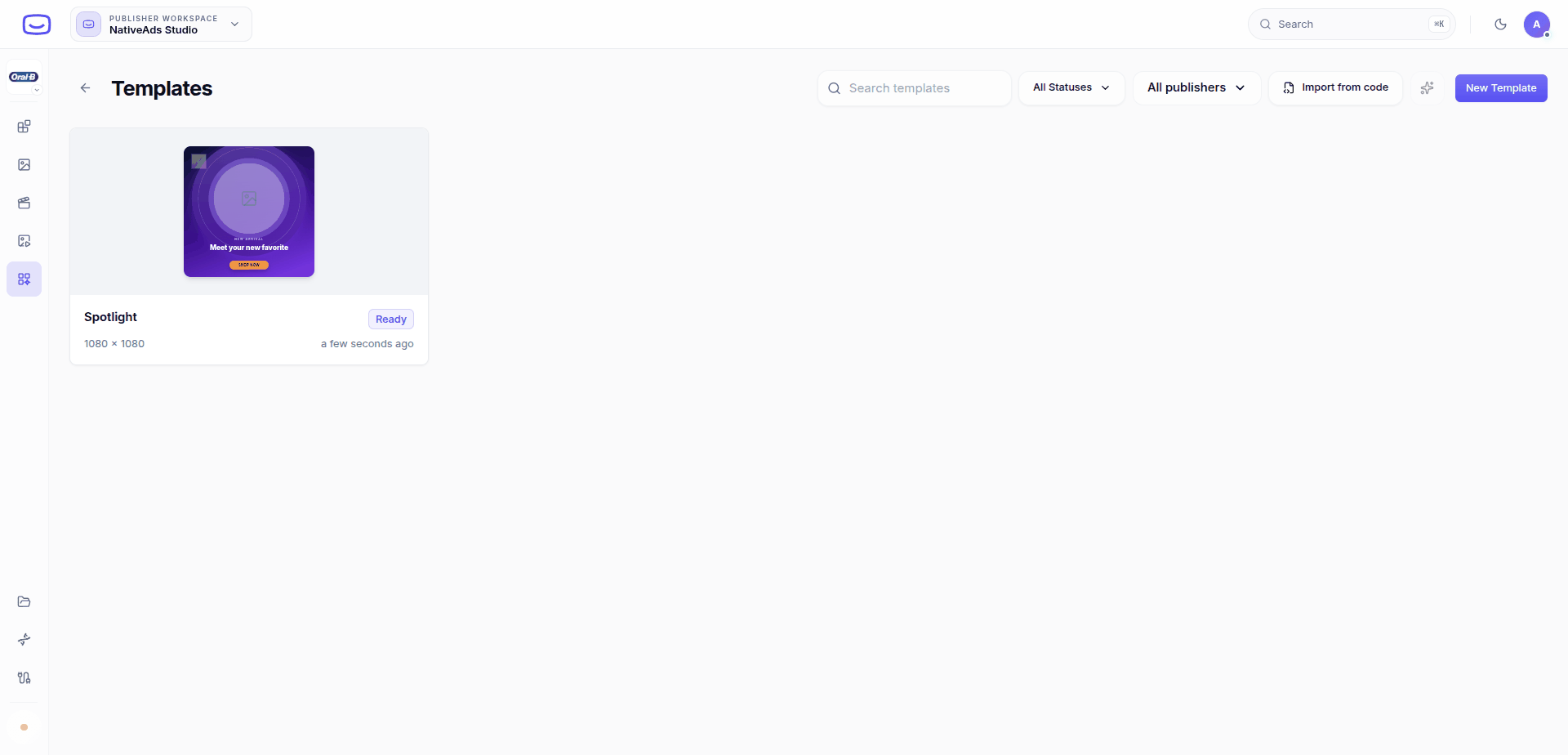
Your templates are listed under Compose → Templates, with their size and status. Use the search box and the status and publisher filters to find one.
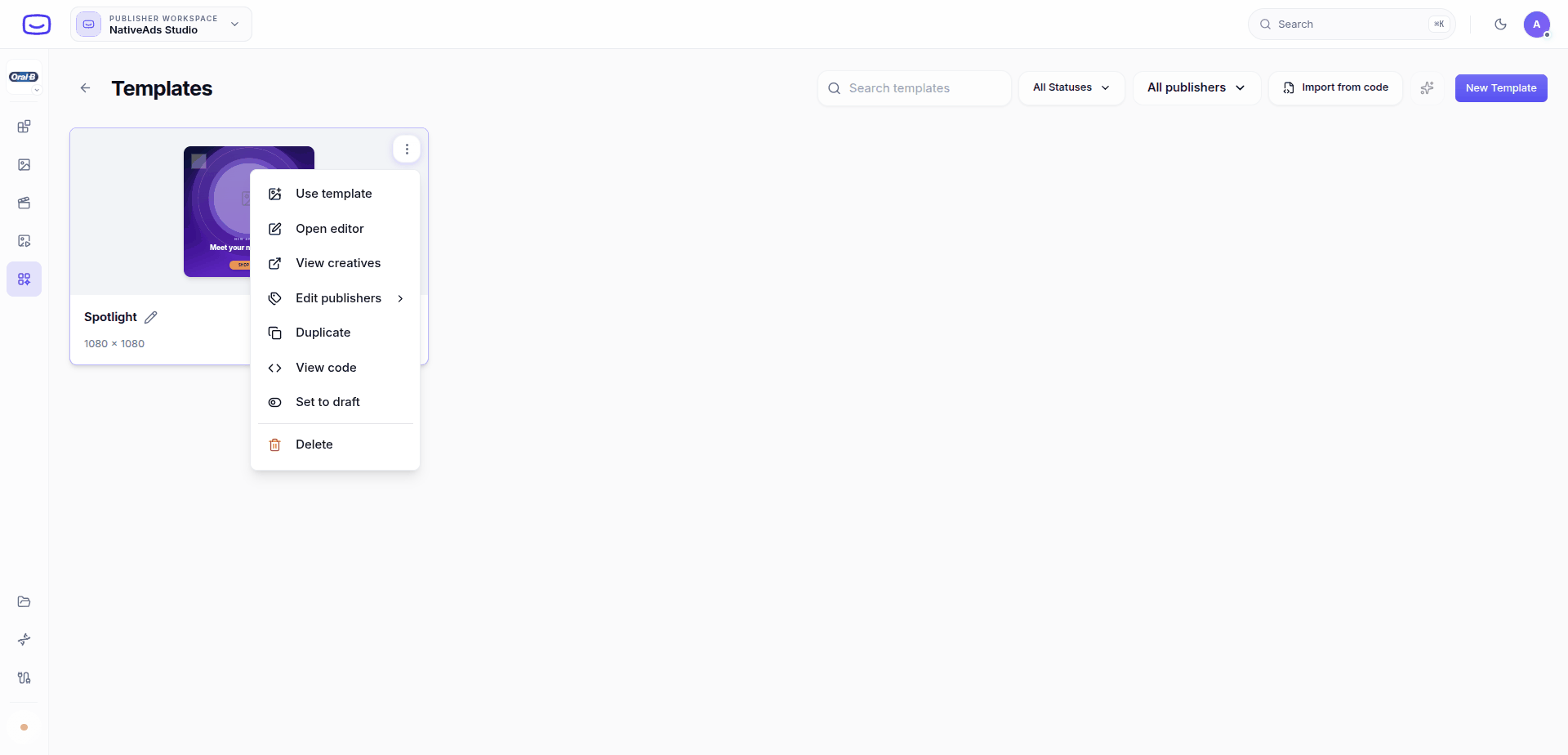
Click ⋮ on a template for Use template, Open editor, View creatives made from it, Edit publishers, Duplicate, View code, Set to draft or Delete.
Predefined templates, marked with a badge, are provided for you. You can use them but not edit them.
Creatives
A creative is a template filled with your content. To make one:
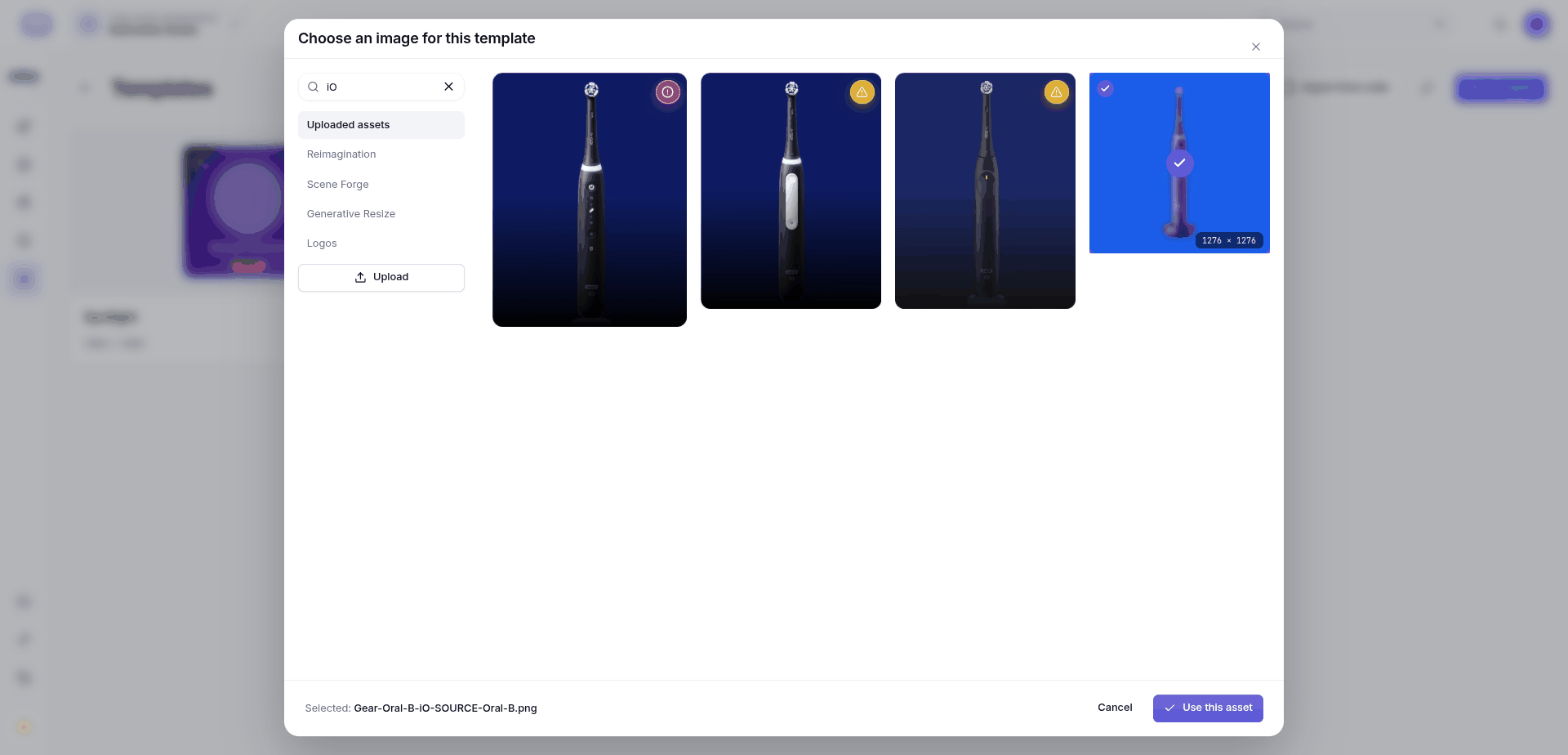
- Click Use template on a ready template and pick an image, or
- Click Use in template on an image in Scene Forge or Video to image, or
- Open Compose → Creatives and click New Creative.
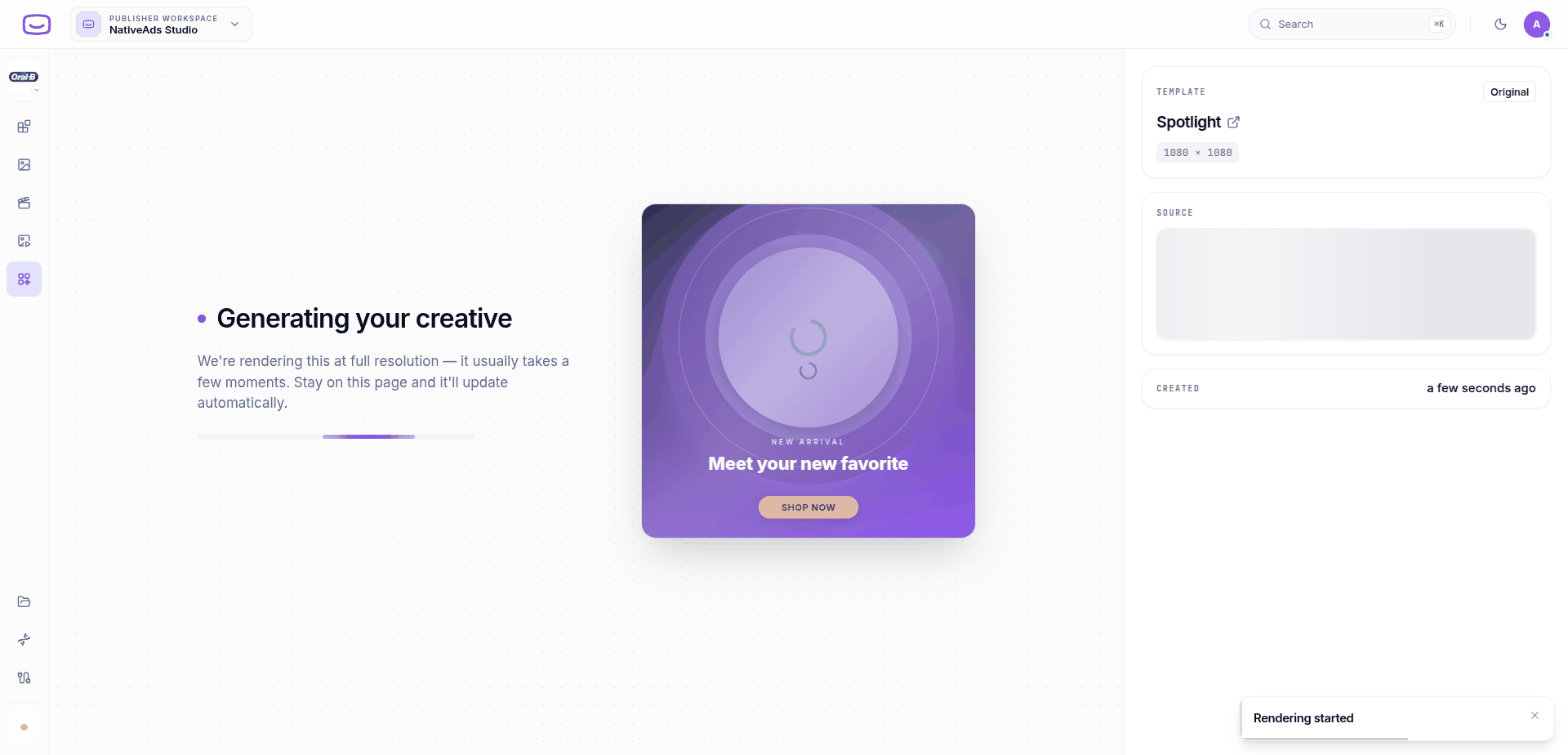
NativeAds renders your image into the template's image slot at full resolution — usually within a few moments — and then opens the creative. Stay on the page and it updates automatically.
Edit a creative
The creative opens with the canvas on the left and the Content panel on the right, listing every slot in order. Fill each slot — Upload an image or Choose from Library & Creatives, and type the text — or click any text or image on the canvas to edit it inline. Everything saves automatically.
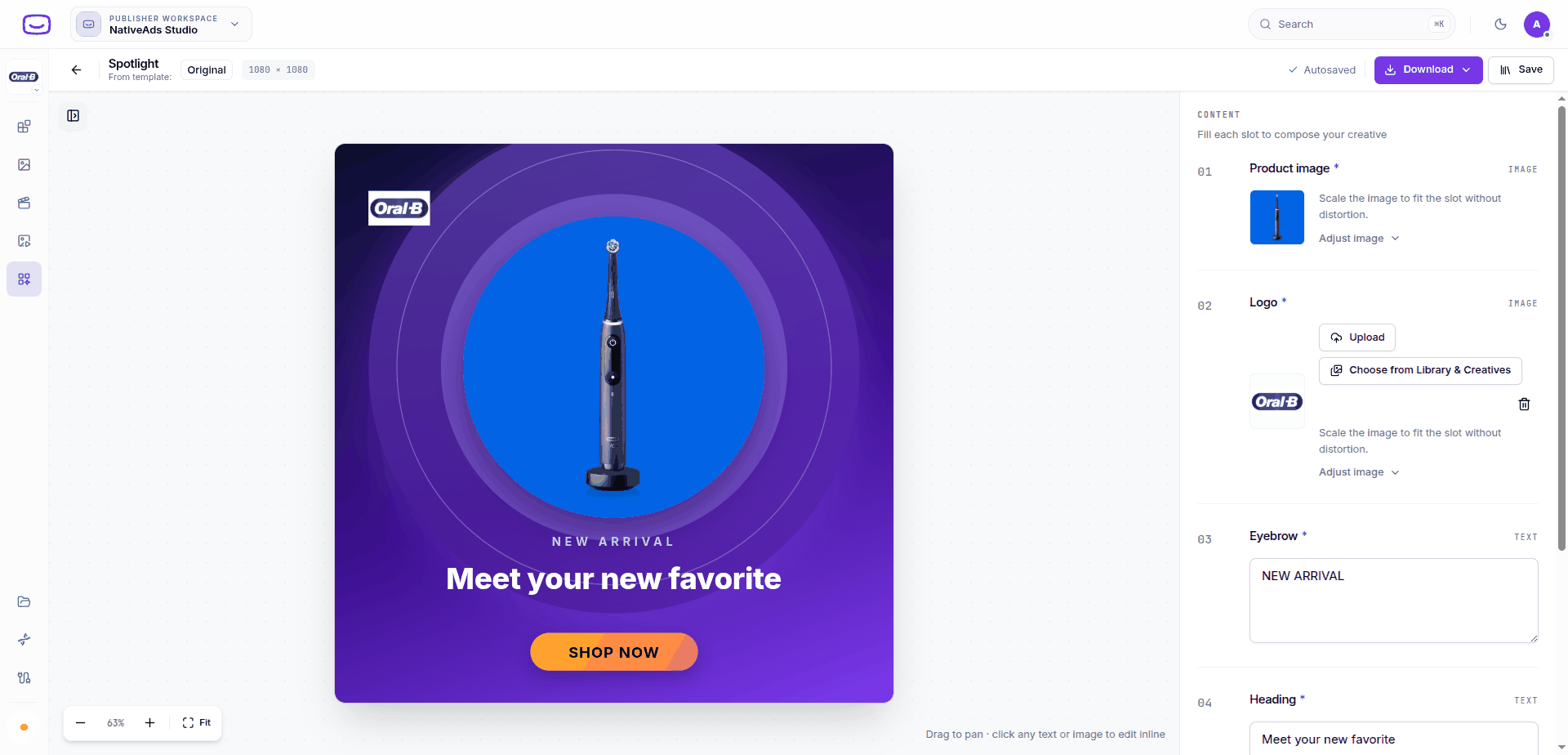
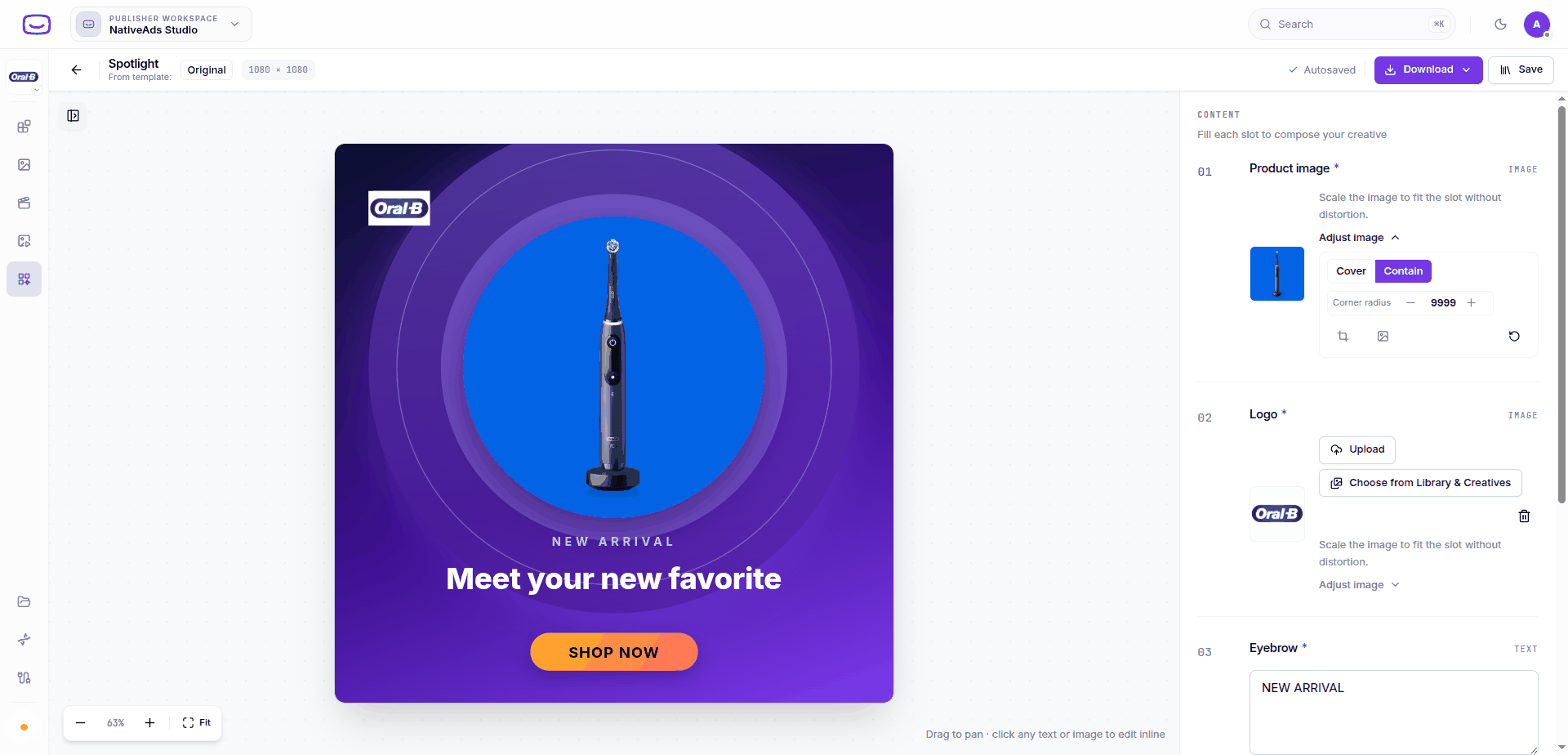
For image slots, open Adjust image to change the fit (Cover or Contain), corner radius, crop, zoom, position and filter, or reset it.
If a text is too long or a required slot is empty, a banner at the top tells you what's missing — click Go to field to fix it. You can't export until it's fixed.
Export
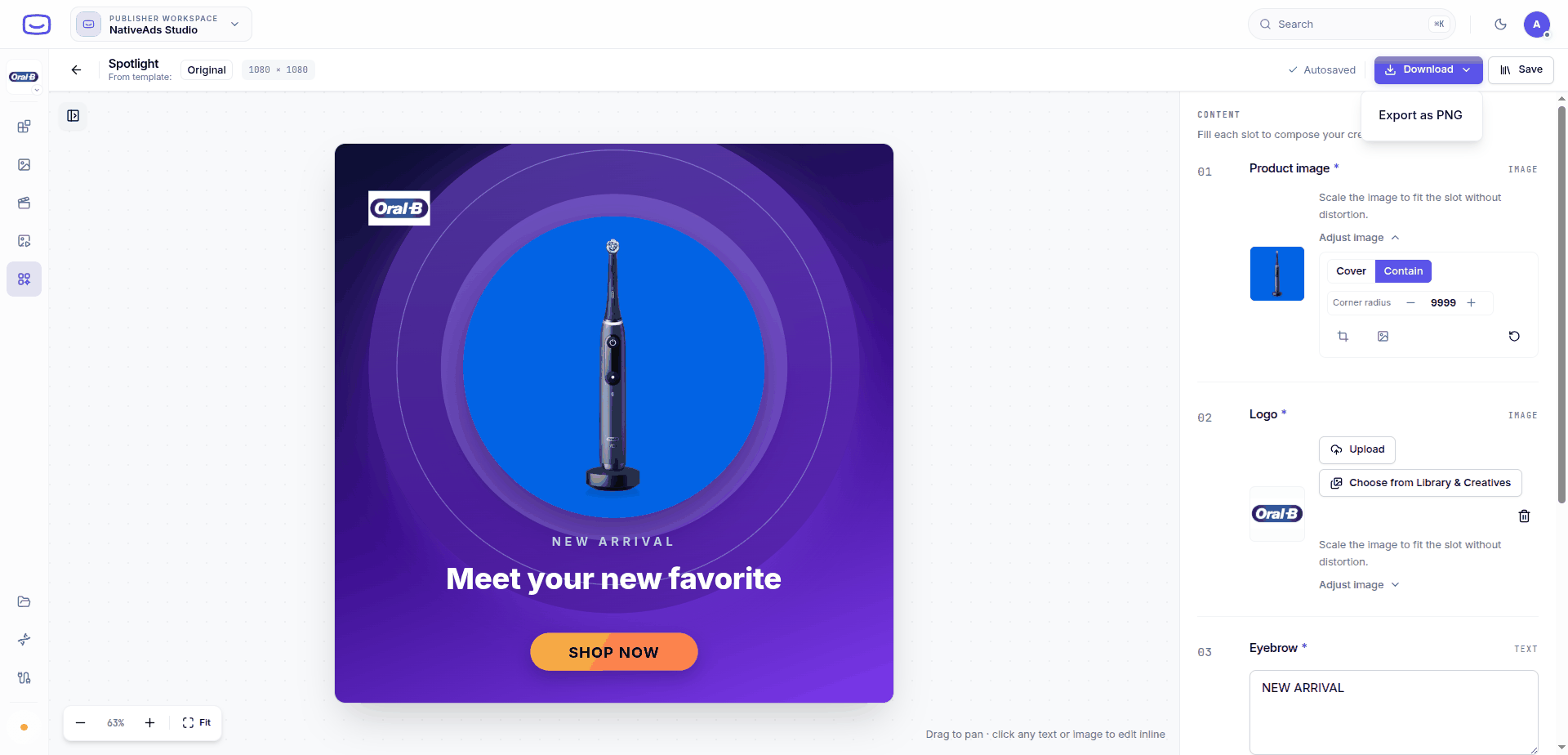
Click Download → Export as PNG, or Save to add the creative to your Library.
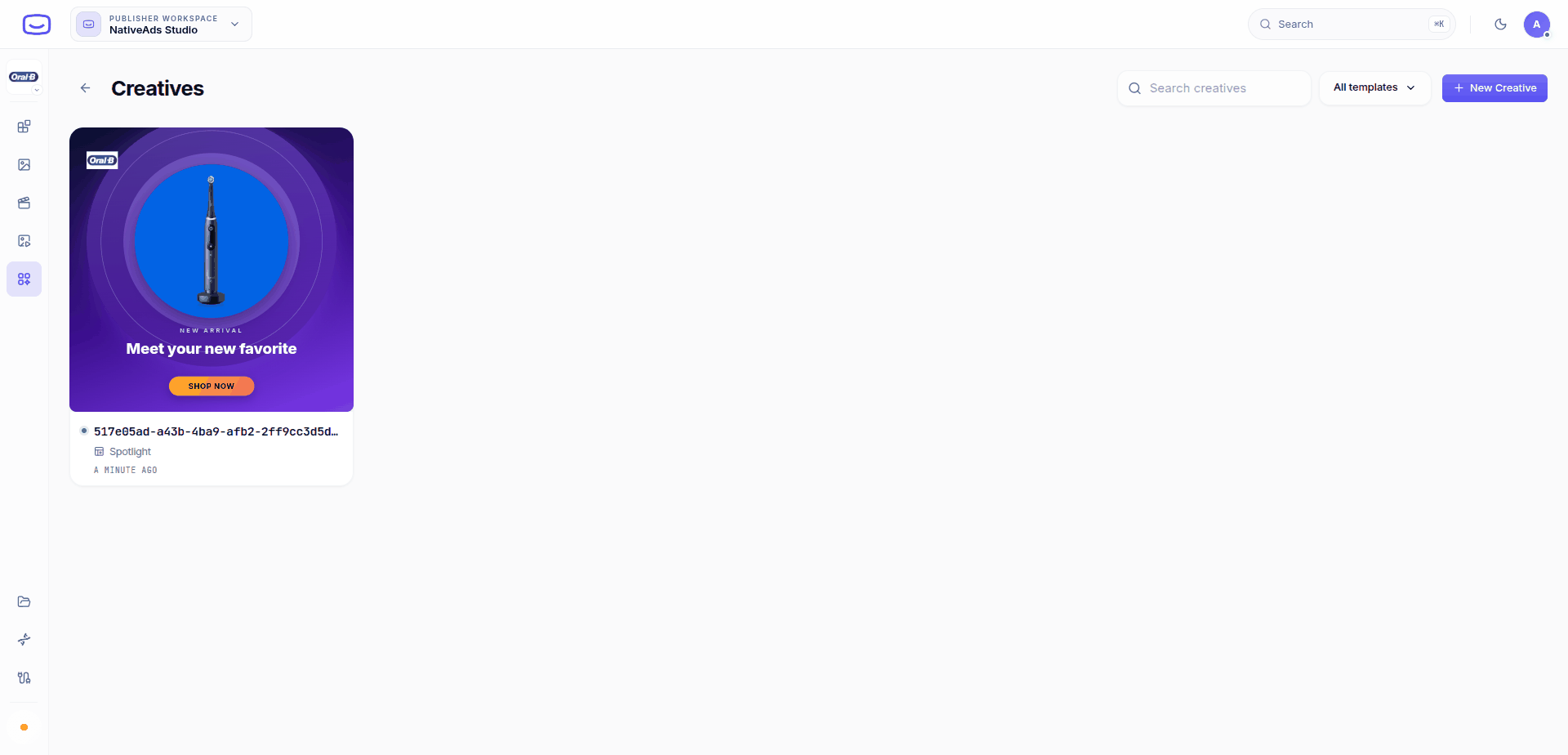
All creatives are listed under Compose → Creatives. Search them or filter by template, and open, export, duplicate or delete them, or jump to the template or source image they came from.
Best Practices
- Bind text slots to your brand or give them fallback text so creatives are never empty.
- Set length limits on text slots to keep copy inside the design.
- Use Contain fit for logos and packshots that must never be cropped.