Integrations
Integrations connect a brand to publishers — retail media networks and streaming TV. Turning a publisher on adds a workspace for it: a version of NativeAds with that publisher's ad formats, sizes and tools, and a way to send ads to its ad platform.
Open Integrations from the sidebar (under Resources) to see the workspaces for your brand.
Available Workspaces
| Workspace | What it's for | How to connect |
|---|---|---|
| NativeAds Studio | Create without any publisher's specs. | Always on. |
| Walmart Connect | Walmart onsite display and video ads, and Sponsored Video. | Walmart Advertiser ID (admins only) — see below. |
| Chewy Ads | Create ads in Chewy's formats and sizes. | Turn on with one click. |
| Instacart Ads | Create ads in Instacart's formats and sizes. | Turn on with one click. |
| Vibe CTV | Publish your brand videos to streaming TV and follow Vibe's review. | Sign in to Vibe and choose your advertiser. Shown when Vibe is available for your account. |
Connect Walmart Connect
Walmart has two products, each with its own Advertiser ID:
- Onsite ads — images & video — display banners and Onsite Video on Walmart.com and the Walmart app. One Advertiser ID turns on both Onsite Display and Onsite Video.
- Sponsored Video — video ads in Walmart search results that link to a product page. See Sponsored Video.
To connect a product:
- In Walmart Connect, add NativeAds as a tech partner for that product.
- In NativeAds, turn the product on under Walmart Connect.
- Enter the Advertiser ID (numbers only, up to 10 digits — find it in Walmart Connect › Account) and click Turn on.
If Walmart doesn't accept the ID, check it in Walmart Connect and make sure NativeAds is added as a tech partner. Only admins can add, change or remove Walmart Advertiser IDs, and an ID can't be changed while the brand has creatives submitted to Walmart.
Connect Vibe CTV
Turn Vibe CTV on. If your organization hasn't linked a Vibe account yet, you'll sign in to Vibe first. Then choose the Vibe advertiser to use for this brand. In the Vibe workspace, video results get a Publish to Vibe action.
Switch Workspaces
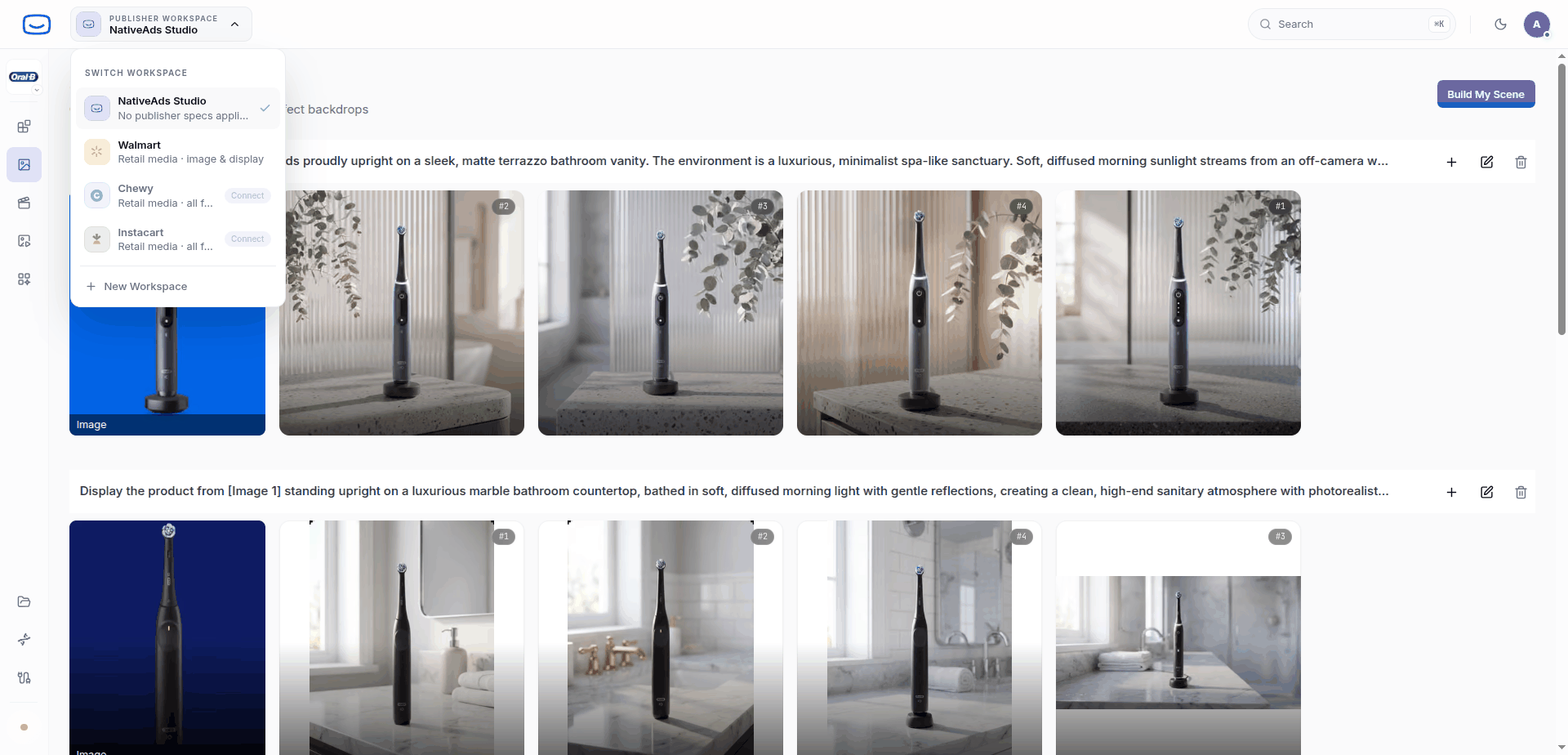
Use the workspace switcher in the app header to move between your connected workspaces. Each workspace shows the tools for that publisher:
| Workspace | Tools |
|---|---|
| NativeAds Studio | Image to image, Image to video, Video to image, Compose |
| Walmart | Scene Forge, Image to video, Creative Builder (Onsite Display, Onsite Video, Sponsored Video), Compose templates |
| Chewy | Reimagination, Generative Resize, Upscale, Compose |
| Instacart | Image to image, Compose |
| Vibe CTV | Image to video, Vibe CTV |
New work is tagged with the workspace you created it in, and each workspace's galleries show that workspace's work. NativeAds Studio shows everything.
Turning a publisher off asks you to confirm first.