Brand DNA
Brand DNA is your brand's identity — colors, typography, imagery style, tone of voice, audience, motion style and rules — captured once from your brand guidelines, website, images and videos. When Brand DNA is active, NativeAds applies it to your generations so every creative stays on-brand.
Plan: all plans.
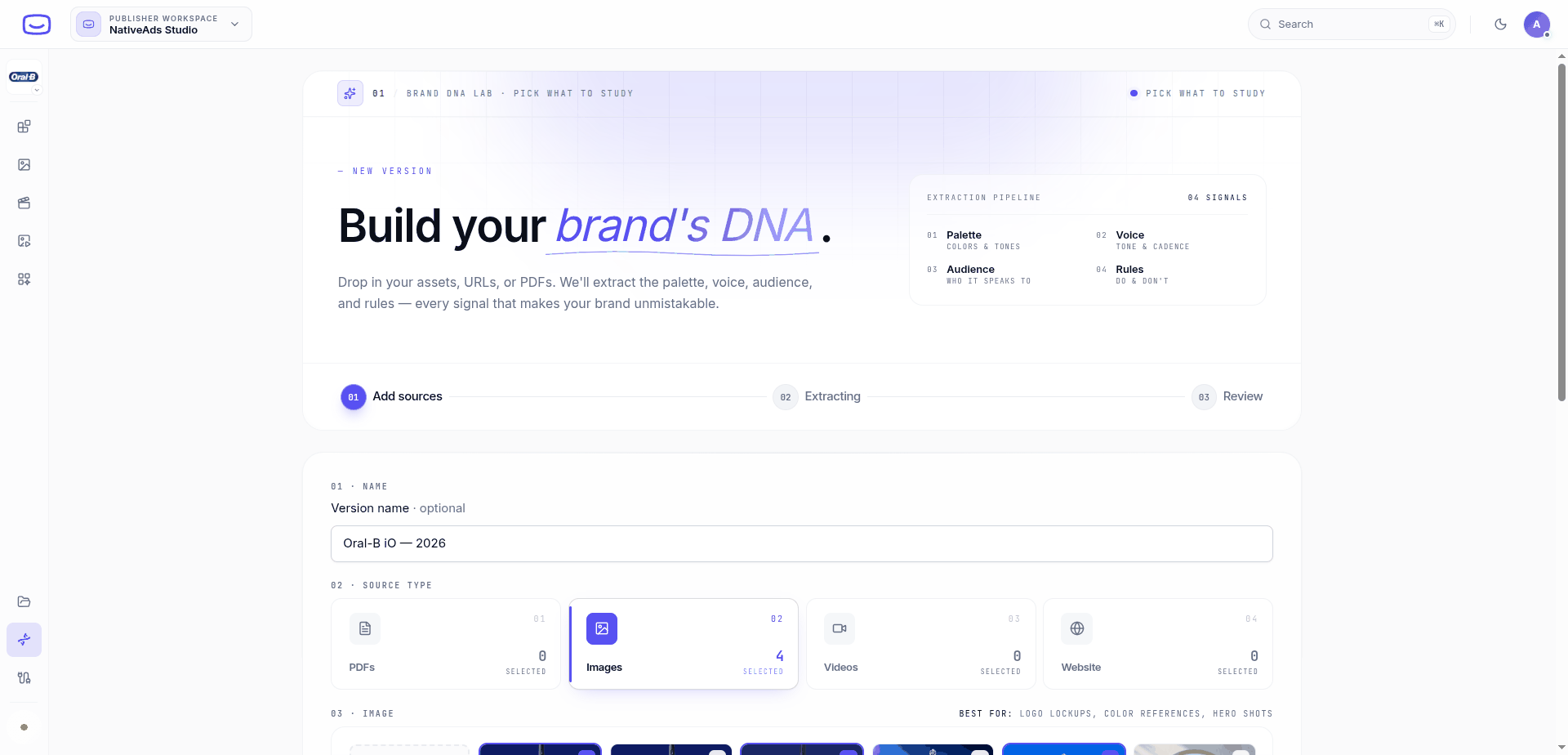
How It Works
You give NativeAds your brand sources. It reads them and extracts a structured Brand DNA, which you can review and edit. Each extraction creates a version; one version per brand is active at a time, and that's the one generation uses.
Create a Brand DNA Version
Open Brand DNA from the sidebar and click Create First Version (or New version if you already have one).
Step 1 — Name it (optional)
Give the version a name, e.g. "Q4 2026 refresh".
Step 2 — Add sources
Add at least one source. Mix as many types as you like:
| Source | Best for |
|---|---|
| PDFs | Brand books, style guides, pitch decks |
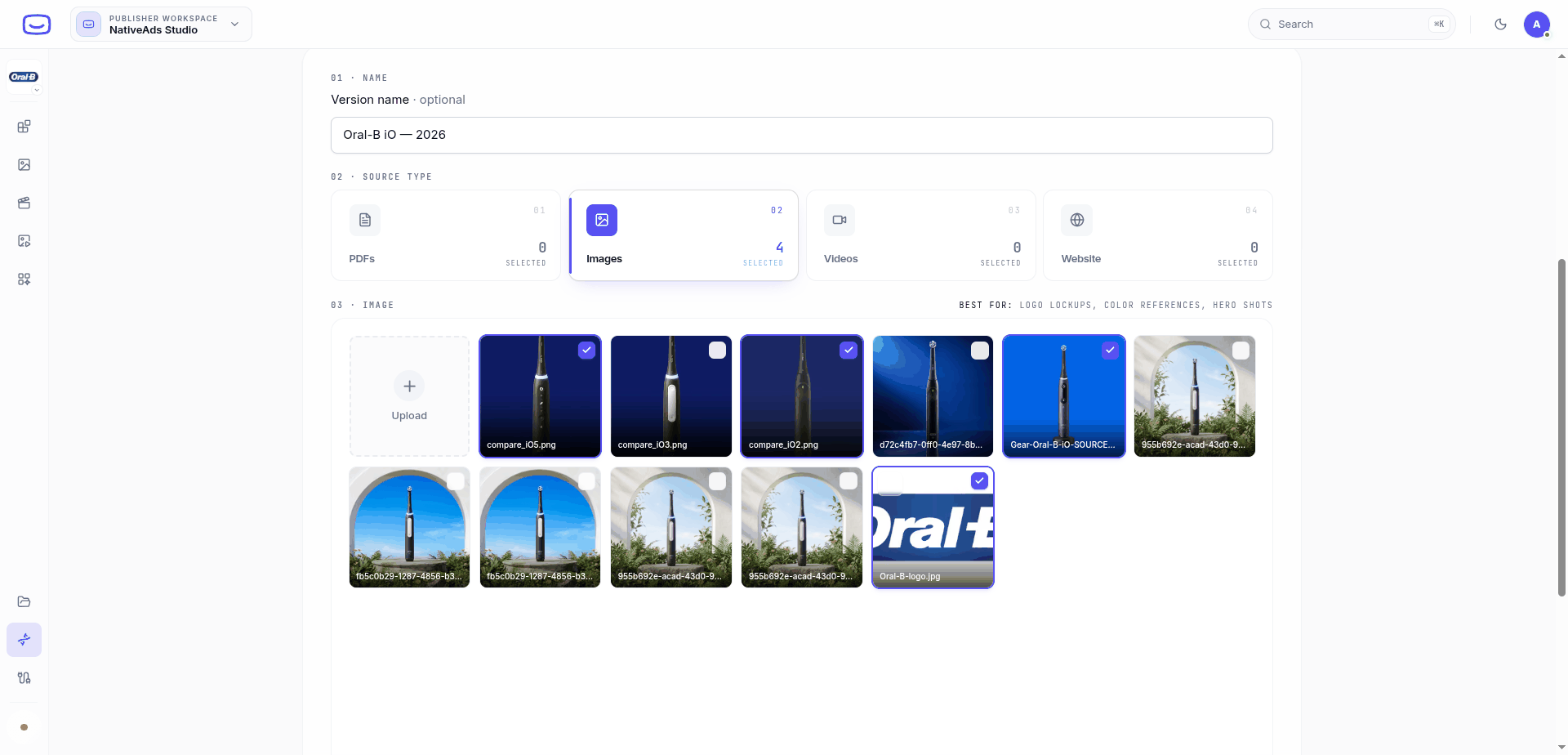
| Images | Logo lockups, color references, hero shots |
| Videos | Spots, sizzle reels, motion references |
| Website | Your brand website — NativeAds reads its key pages |
Click a source type, then tick files already in your Library or click Upload to add new ones. The number on each type shows how many you've selected.
For Website, type a URL and click Add URL. URLs must start with http:// or https://.
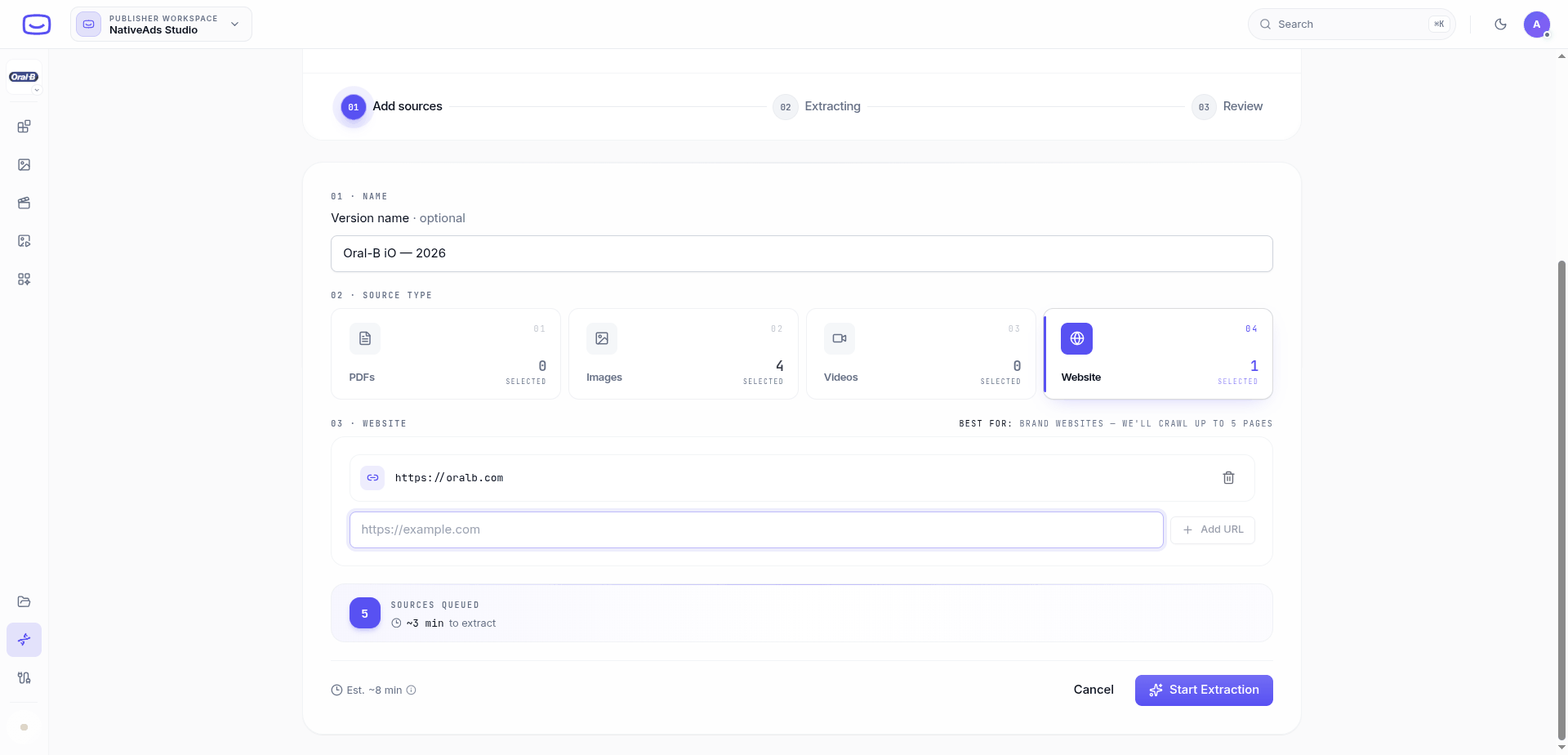
Step 3 — Start the extraction
The panel at the bottom shows how many sources are queued and roughly how long they'll take. Click Start Extraction. Extraction usually takes a few minutes. You can leave the page — it continues in the background, and the version appears on the Brand DNA page when it's ready.
While it runs, the page shows the progress for each source, then a Building your Brand DNA screen while the results are combined.
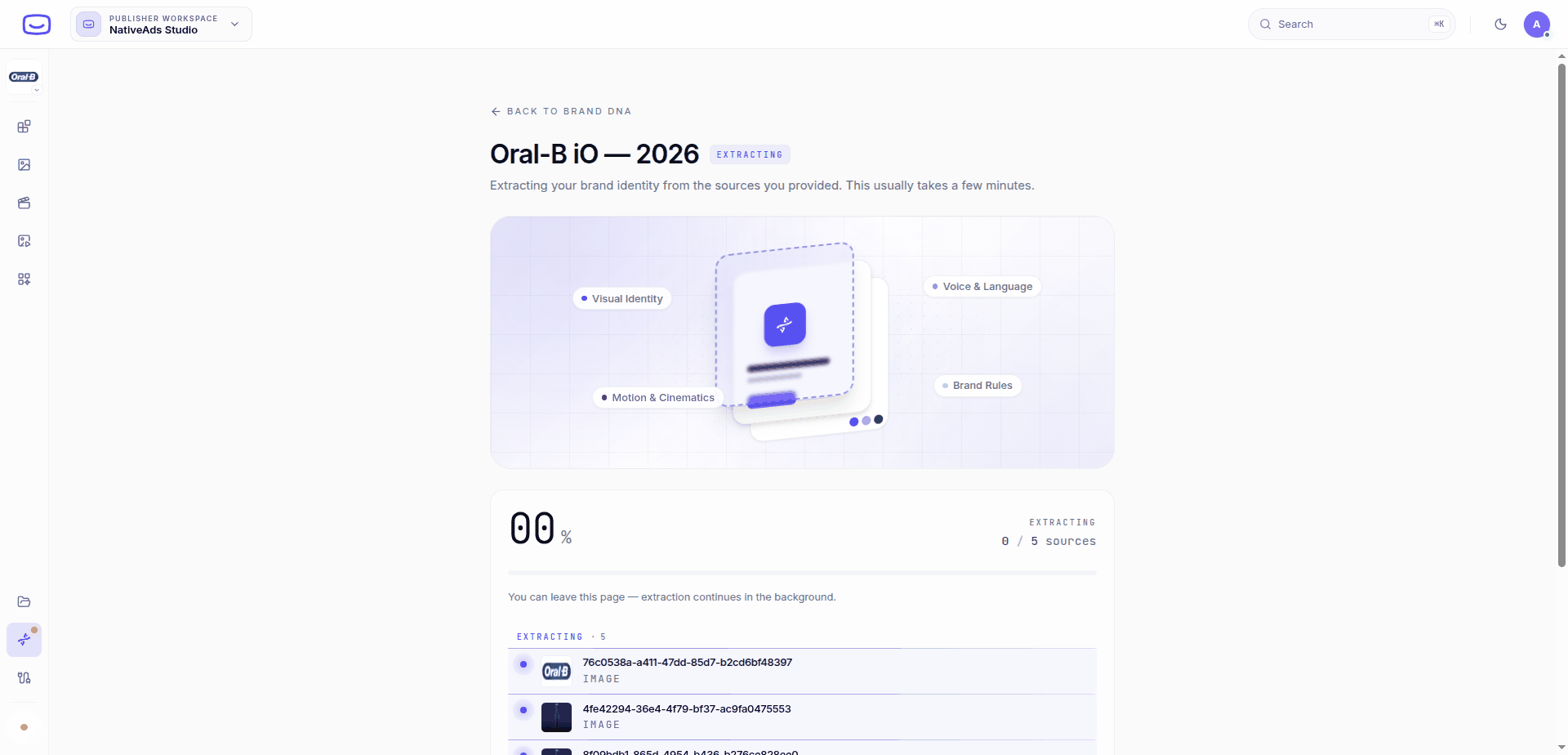
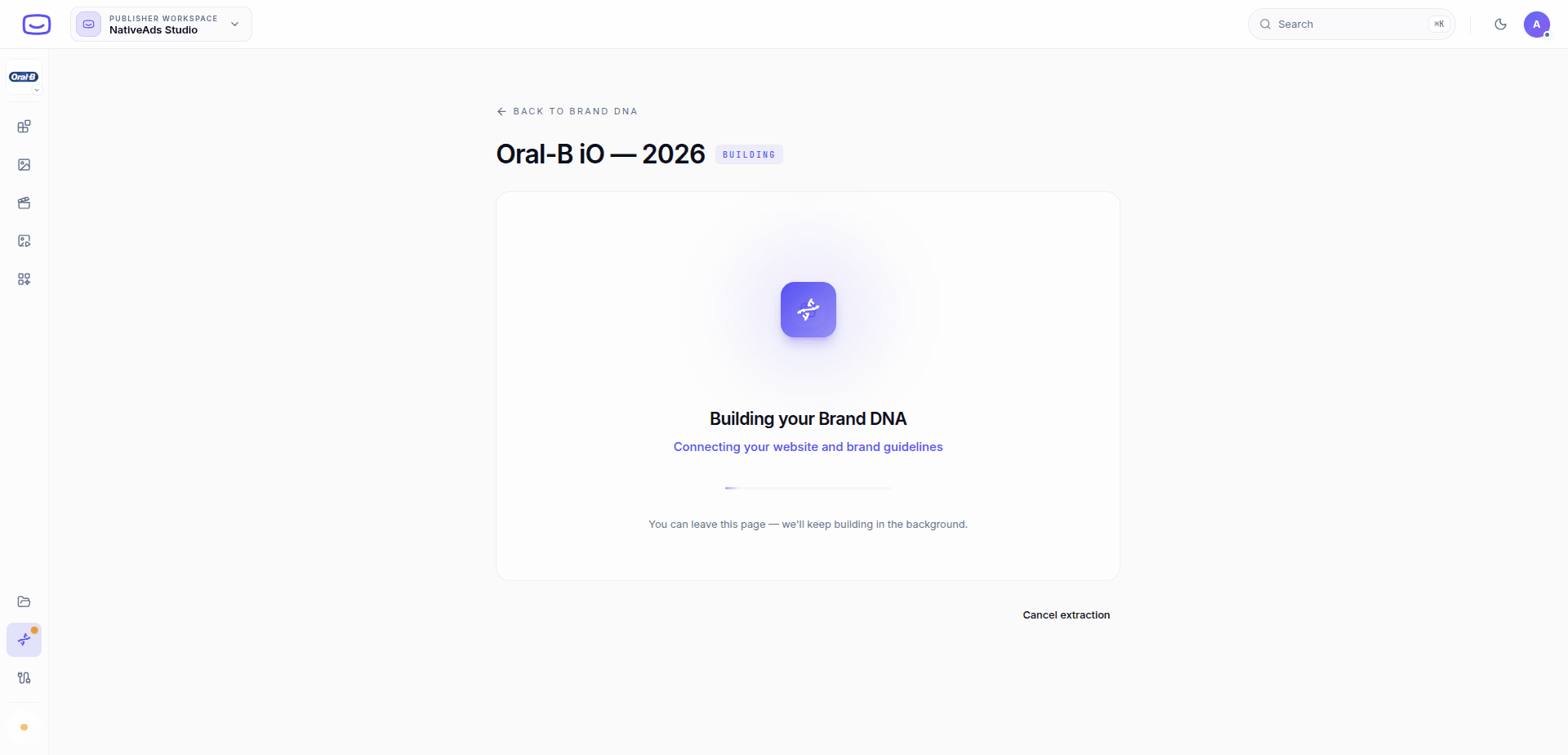
Only one extraction can run per brand at a time. You can cancel an extraction in progress; your sources stay in your Library.
If an extraction fails, NativeAds shows which sources couldn't be read or had too little brand signal, so you can retry with different sources.
Review and Edit
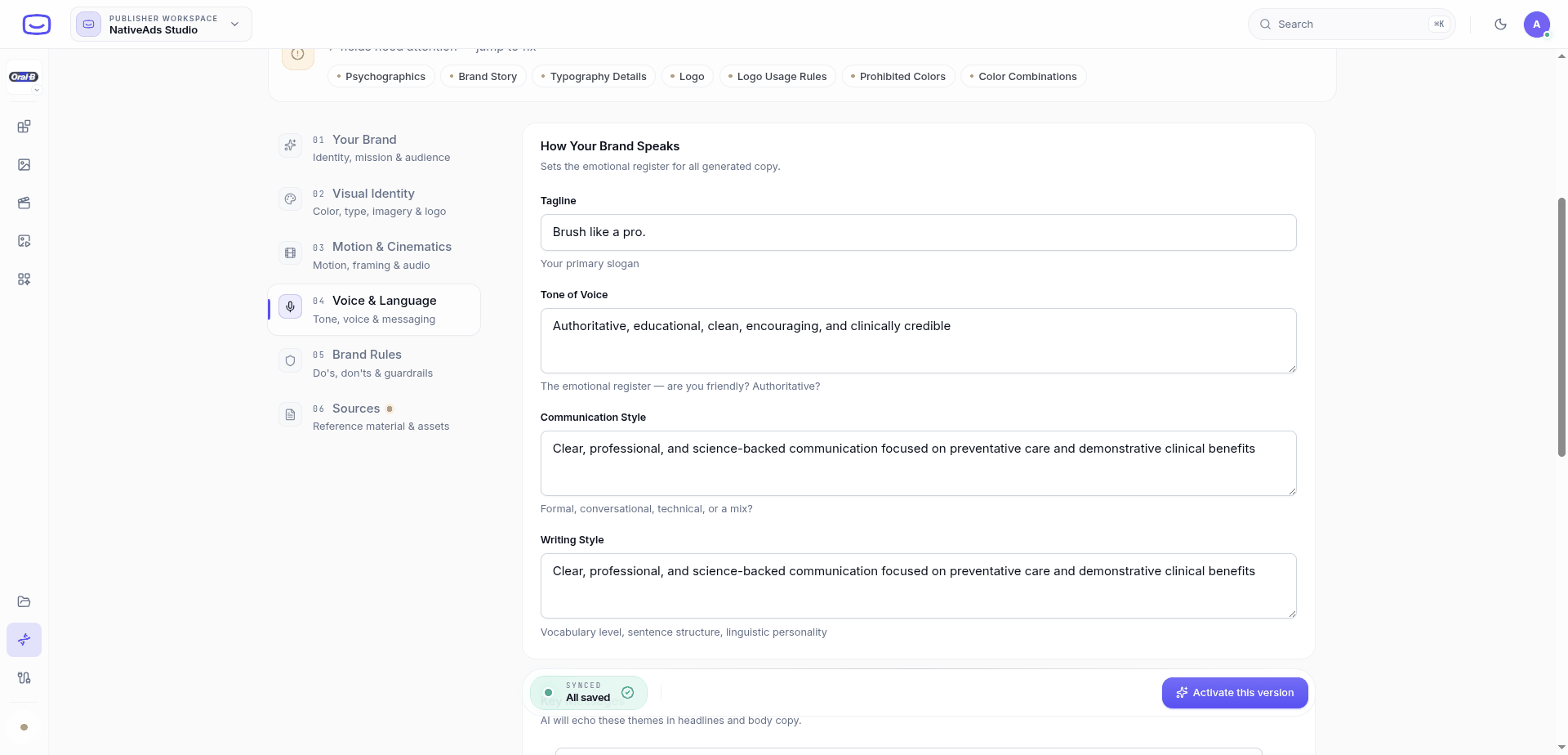
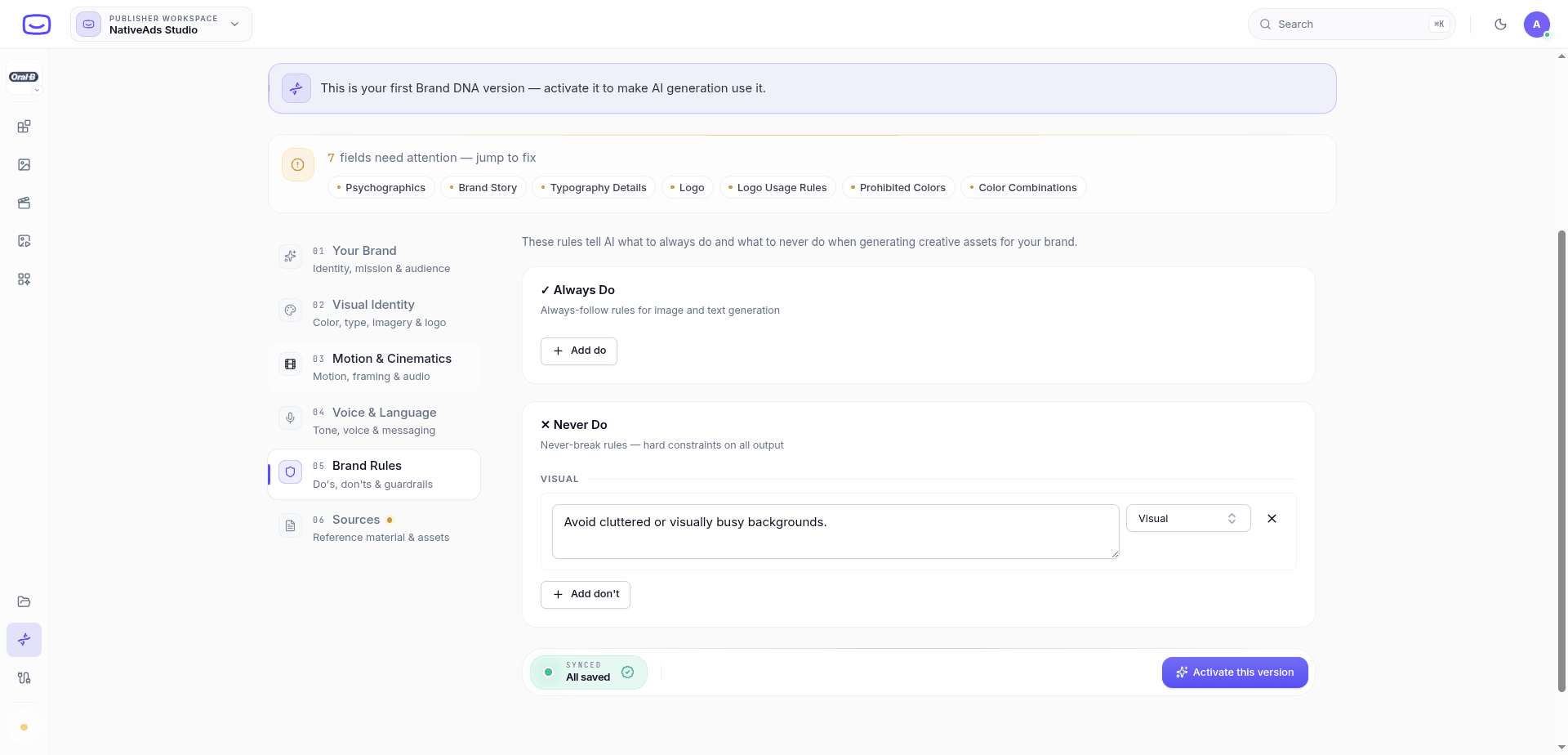
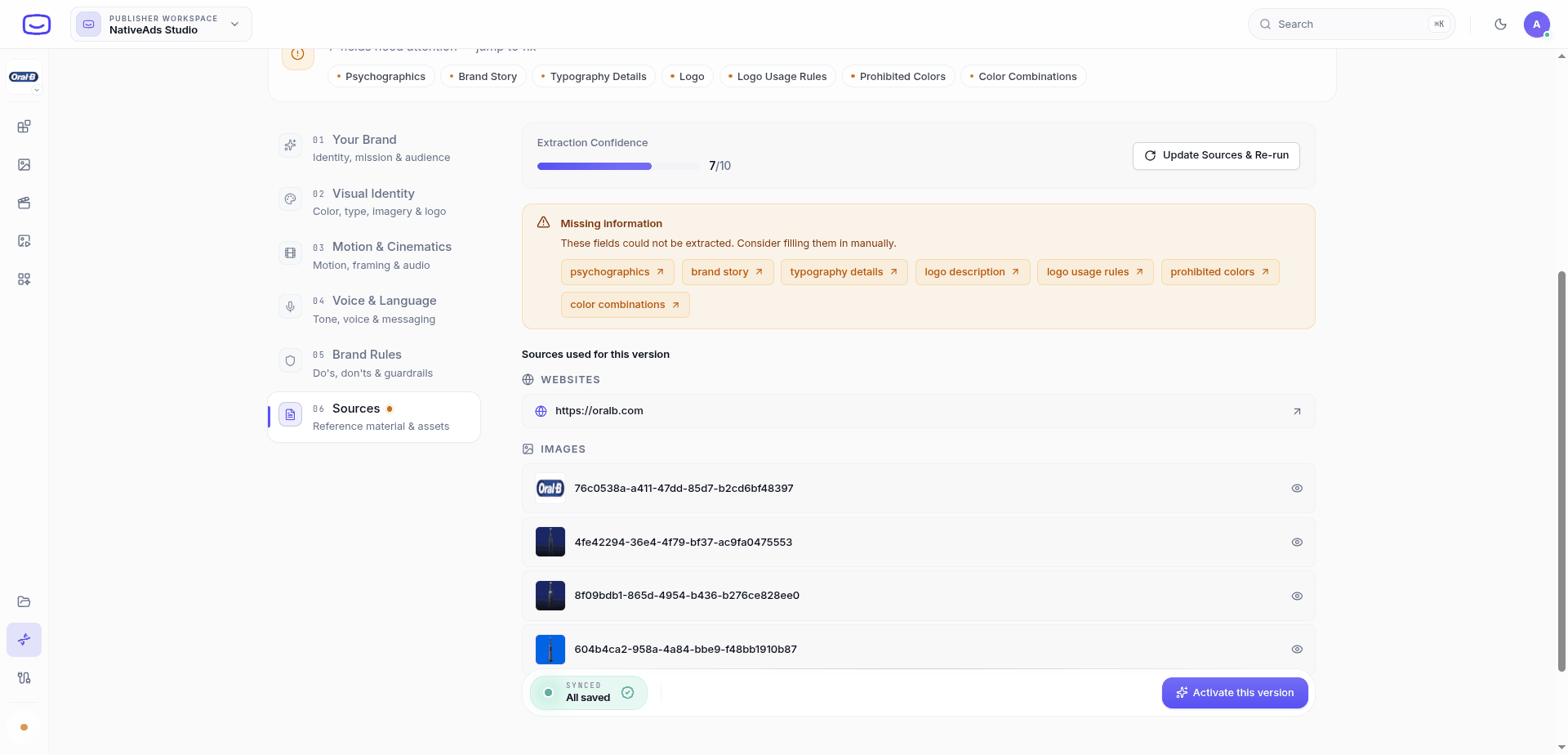
When extraction finishes, the version opens for review. The top shows its confidence score and lists any fields that need attention — click one to jump to it. Every field is editable; the bar at the bottom shows whether your changes are saved.
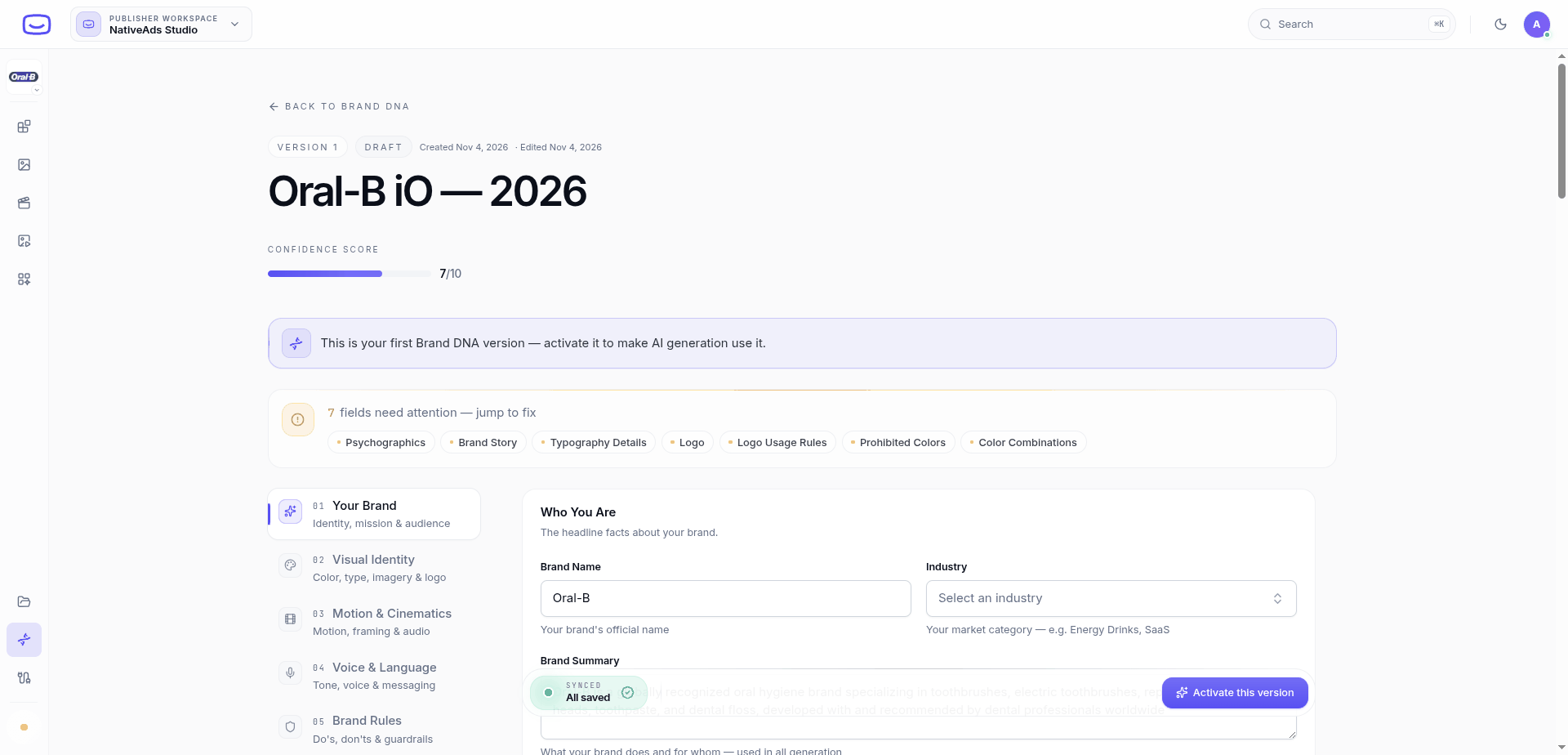
| Section | What it covers |
|---|---|
| Your Brand | Brand name, industry, summary, mission and vision, values, personality, archetype, positioning, and your audience. |
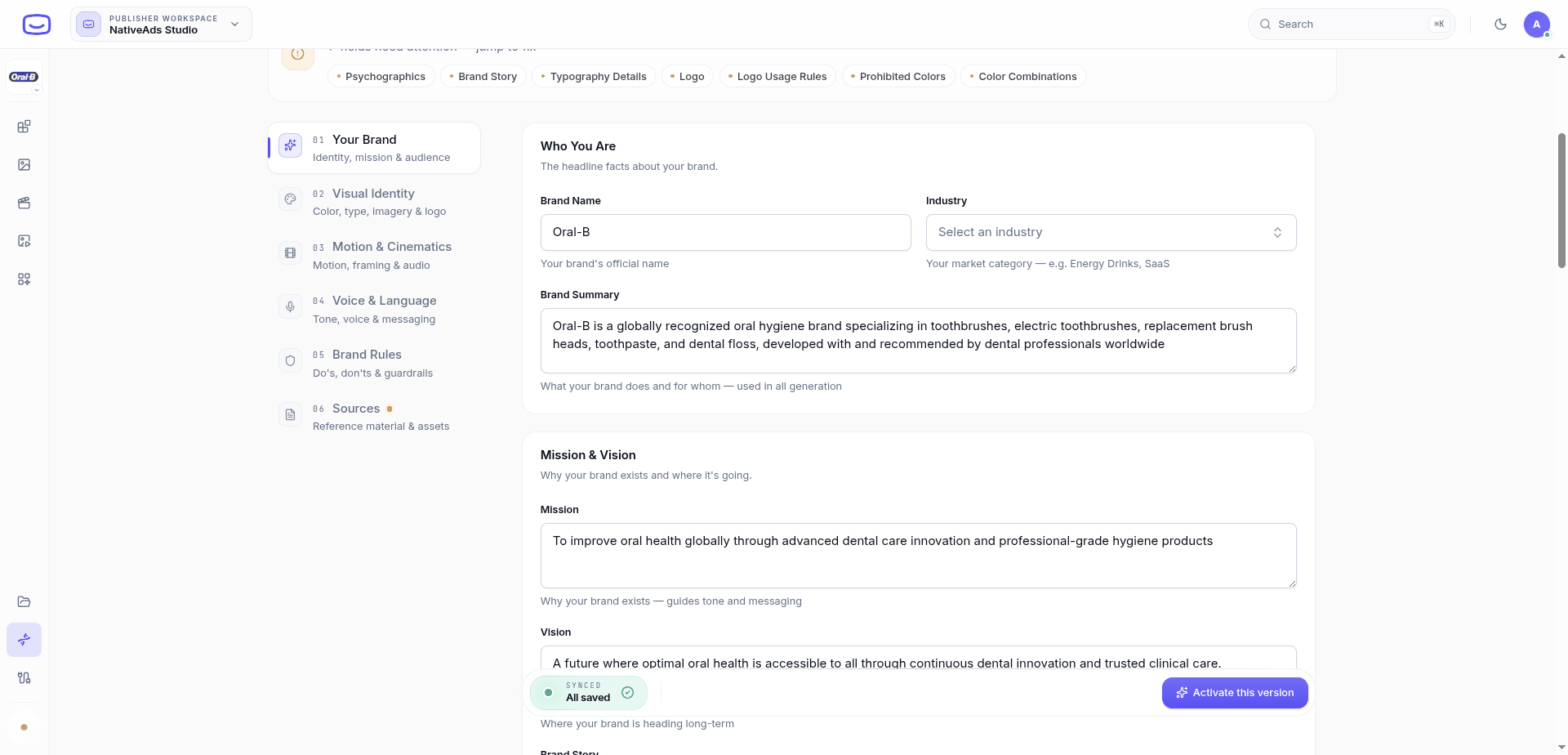
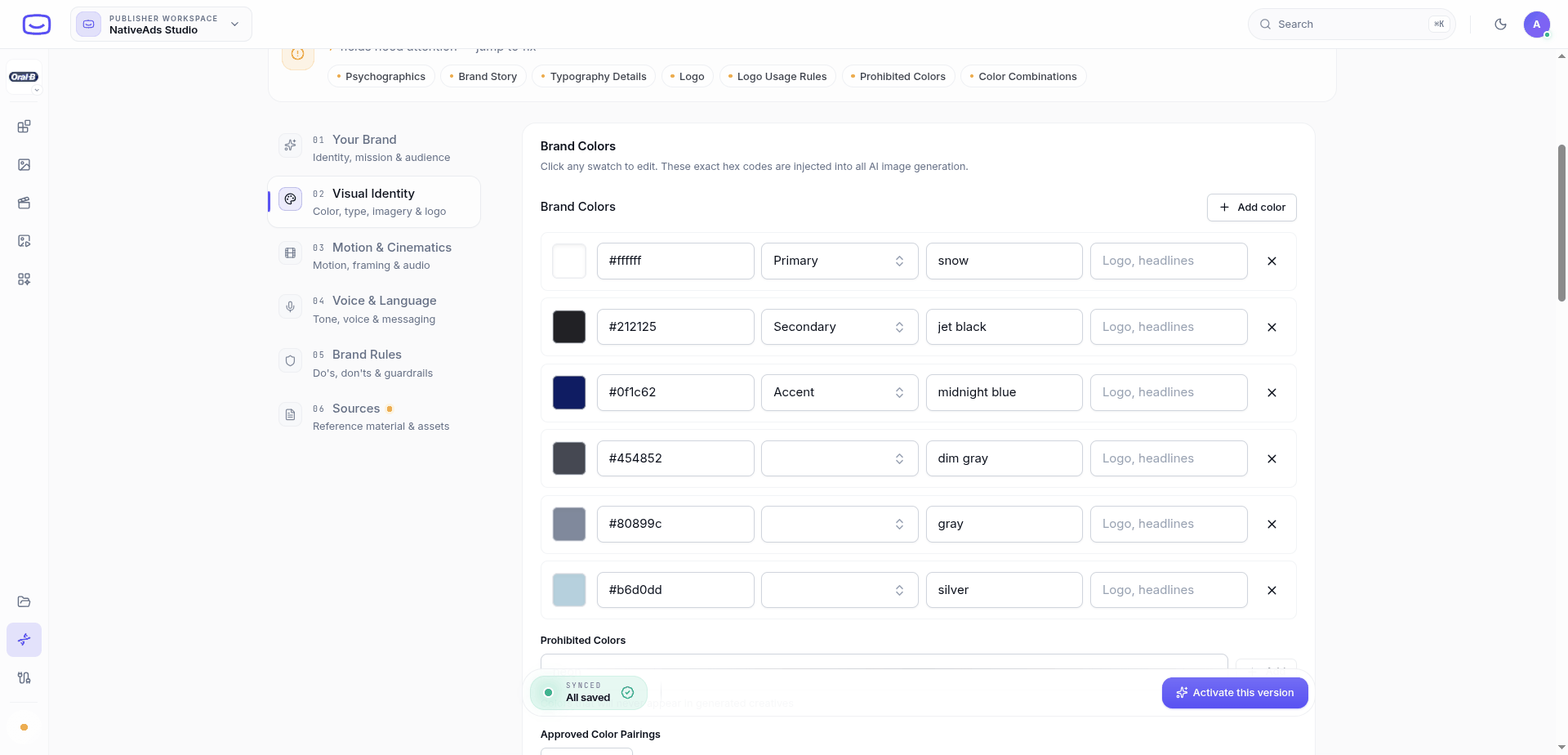
| Visual Identity | Brand colors (exact hex codes used in image generation), prohibited colors, approved color pairings, typography, imagery style and rules, and logo usage. |
| Motion & Cinematics | Camera motion, subject motion, framing, pace, background motion, lighting and audio style — used for video. |
| Voice & Language | Tagline, tone of voice, communication and writing style, key messages, and words to use or avoid. |
| Brand Rules | "Always do" and "Never do" rules, each tagged General, Visual, Voice, Vocabulary or Cinematic. |
| Sources | The sources used, the extraction confidence, and any information that couldn't be extracted. Click Update Sources & Re-run to extract again. |
Brand DNA is shown in your app language.
Activate a Version
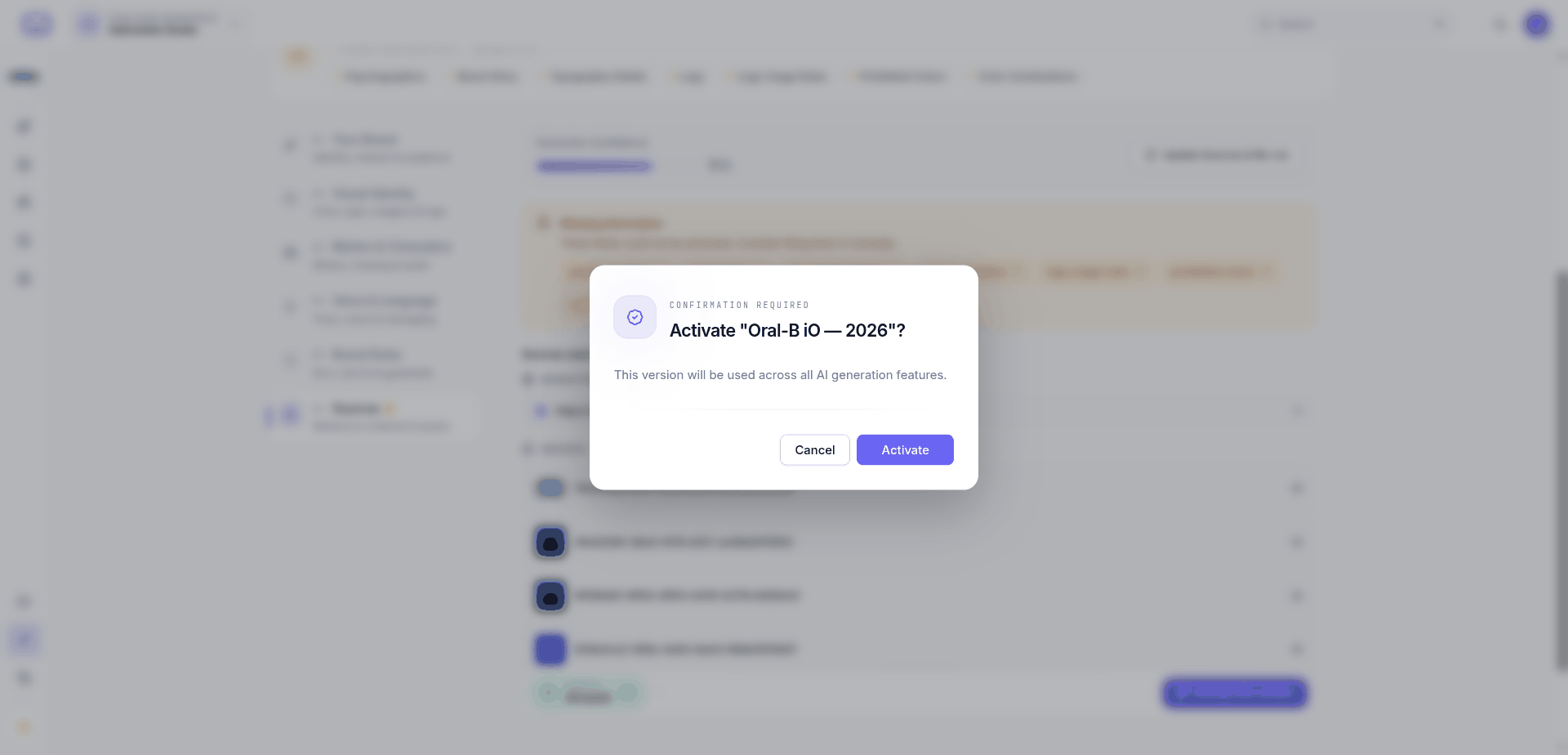
A new version isn't used until you activate it. Click Activate this version in the editor, or Activate next to a version in the list, and confirm. Activating replaces the previous active version for all generation tools.
The Brand DNA page shows your active version with a summary of its colors, typography, tone and core values. Click View & Edit to open it, or New version to start another.
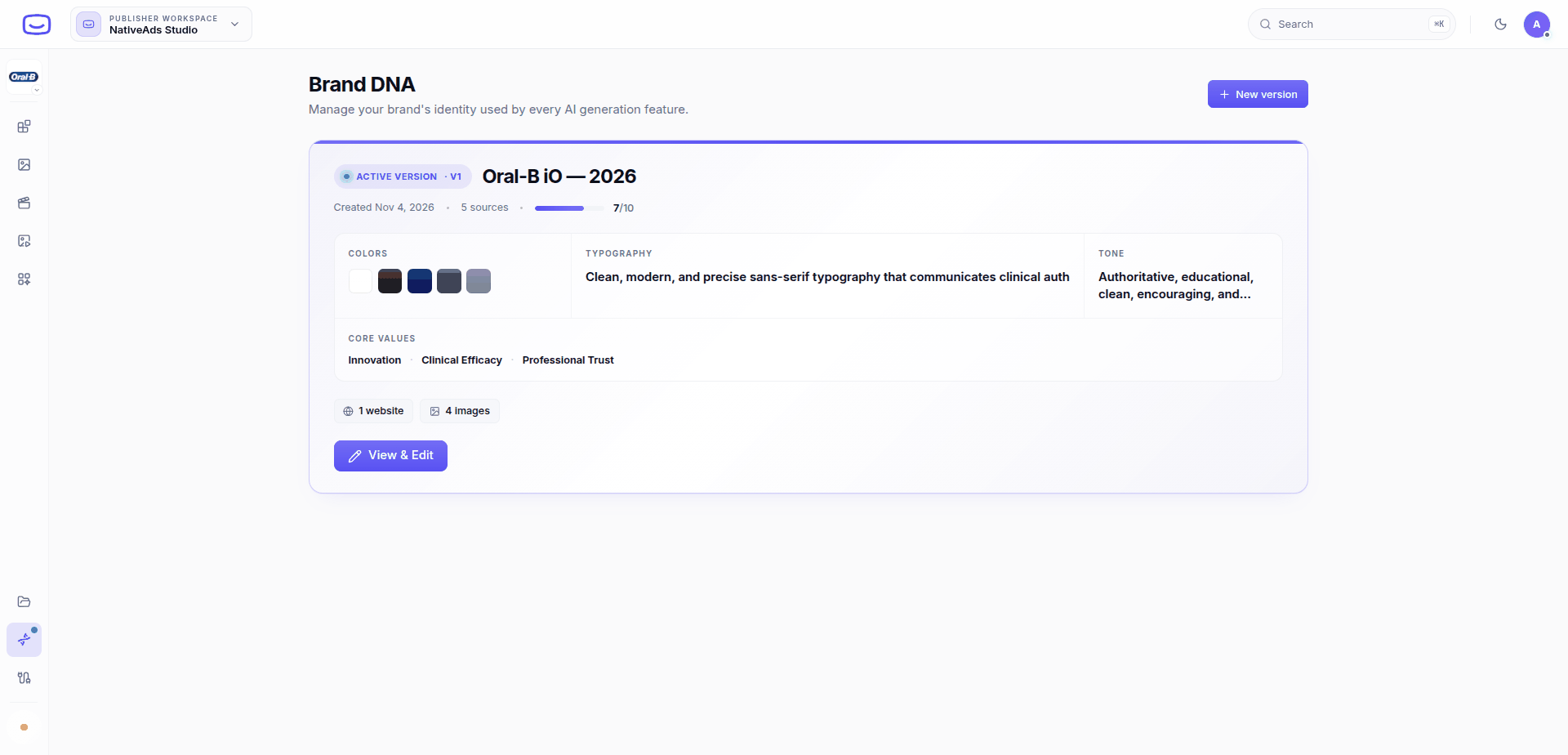
The active version can't be deleted. Deleting another version removes its extracted Brand DNA but keeps its sources in your Library.
Where Brand DNA Is Used
When a brand has an active Brand DNA, a Brand DNA toggle appears — on by default — in:
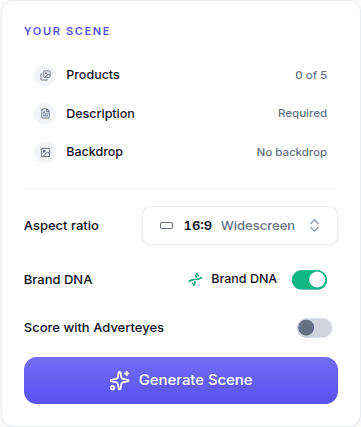
Generating from the prompt on your brand's home page applies Brand DNA automatically.
Best Practices
- Combine source types — a brand book plus your website plus a few hero images gives the most complete result.
- Review before you activate — check colors, rules and words to avoid, since they shape every generation.
- Fill the fields that need attention — they're the gaps the extraction couldn't fill.
- Re-run when your brand changes — create a new version for a refresh and activate it when ready; the old one stays available.