Adverteyes
Adverteyes scores your Scene Forge images before you spend on media. Each image is graded for Brand Affinity and Engagement, ranked against other ads, and comes with recommendations you can apply in one click to generate a stronger version.
Plan: all plans. Each scored generation uses one Creative Optimization (CO) from your plan — see Creative Optimizations.
How to Use
Step 1 — Turn on scoring
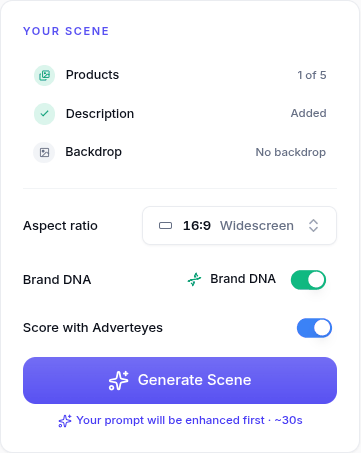
In the Scene Forge creator, switch on Score with Adverteyes (under Brand DNA). Scoring is off by default. The chip next to the switch shows how many Creative Optimizations you have left.
You can also turn on scoring when you generate another variation of an existing scene.
Step 2 — Generate
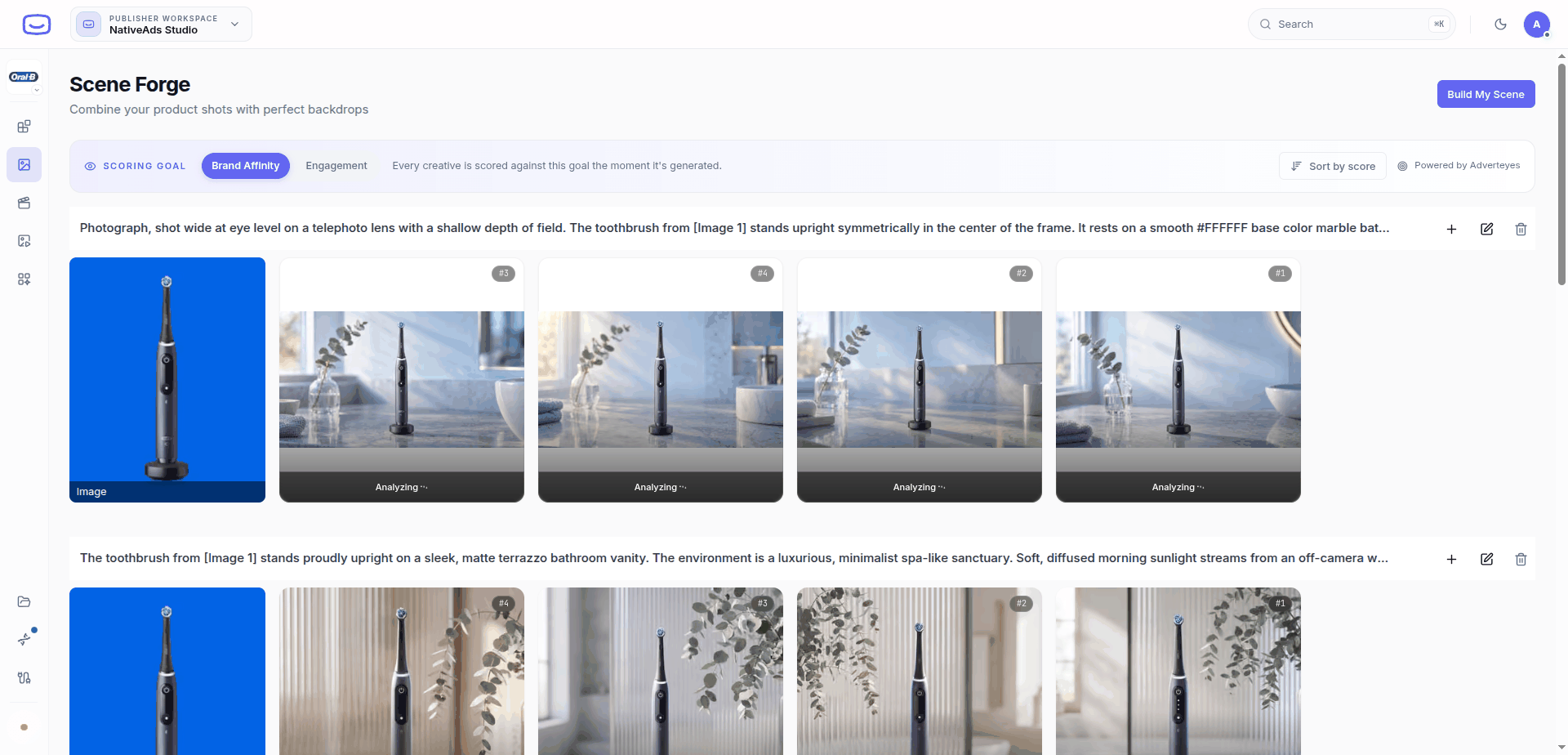
Generate as usual. Each image shows Analyzing… while it's scored, then its grade. Scoring takes a minute or two after the images appear.
Step 3 — Read the scores
At the top of the Scene Forge gallery, choose the Scoring goal:
- Brand Affinity (default) — how likely the creative is to build a positive emotional connection with the brand.
- Engagement — how likely the creative is to drive interaction or action.
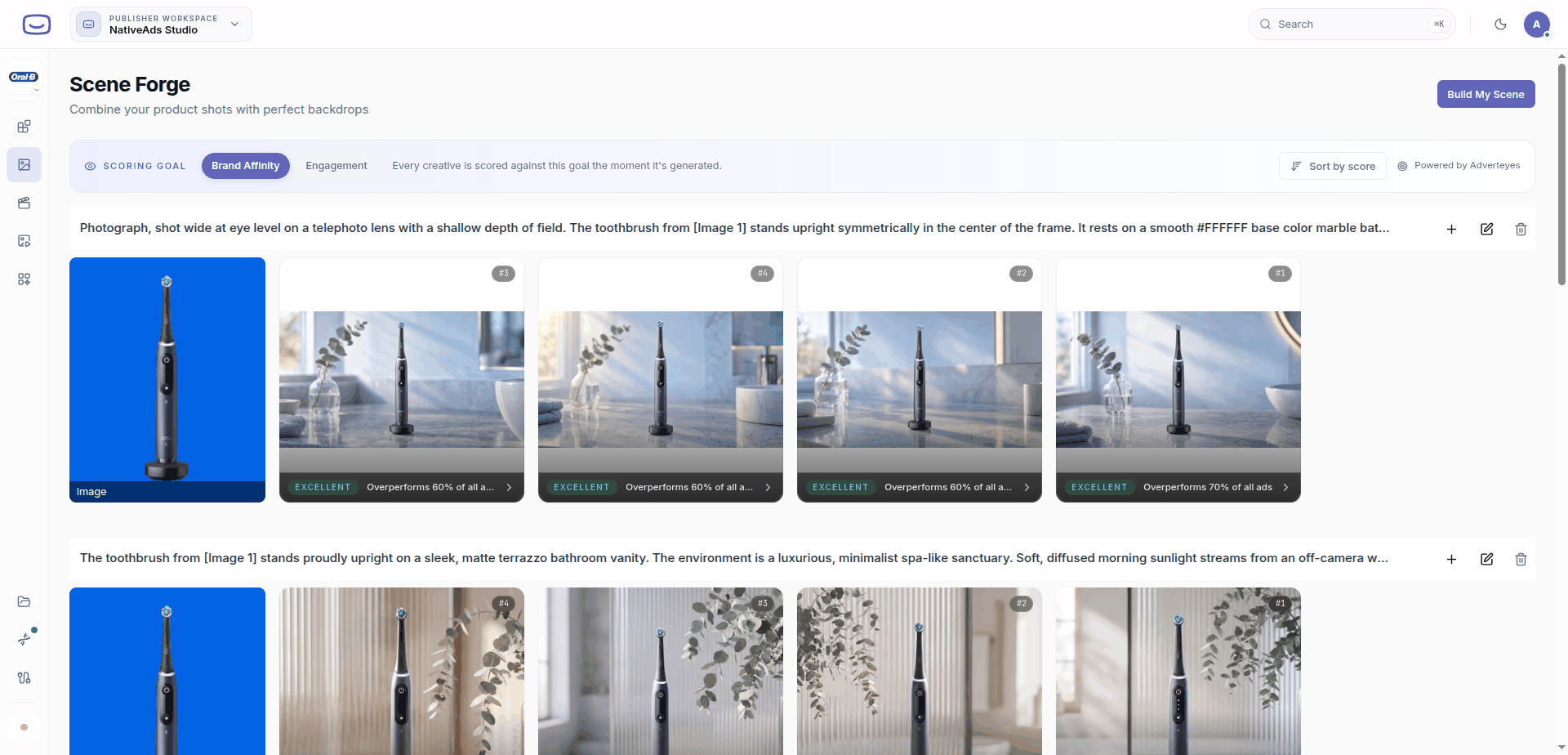
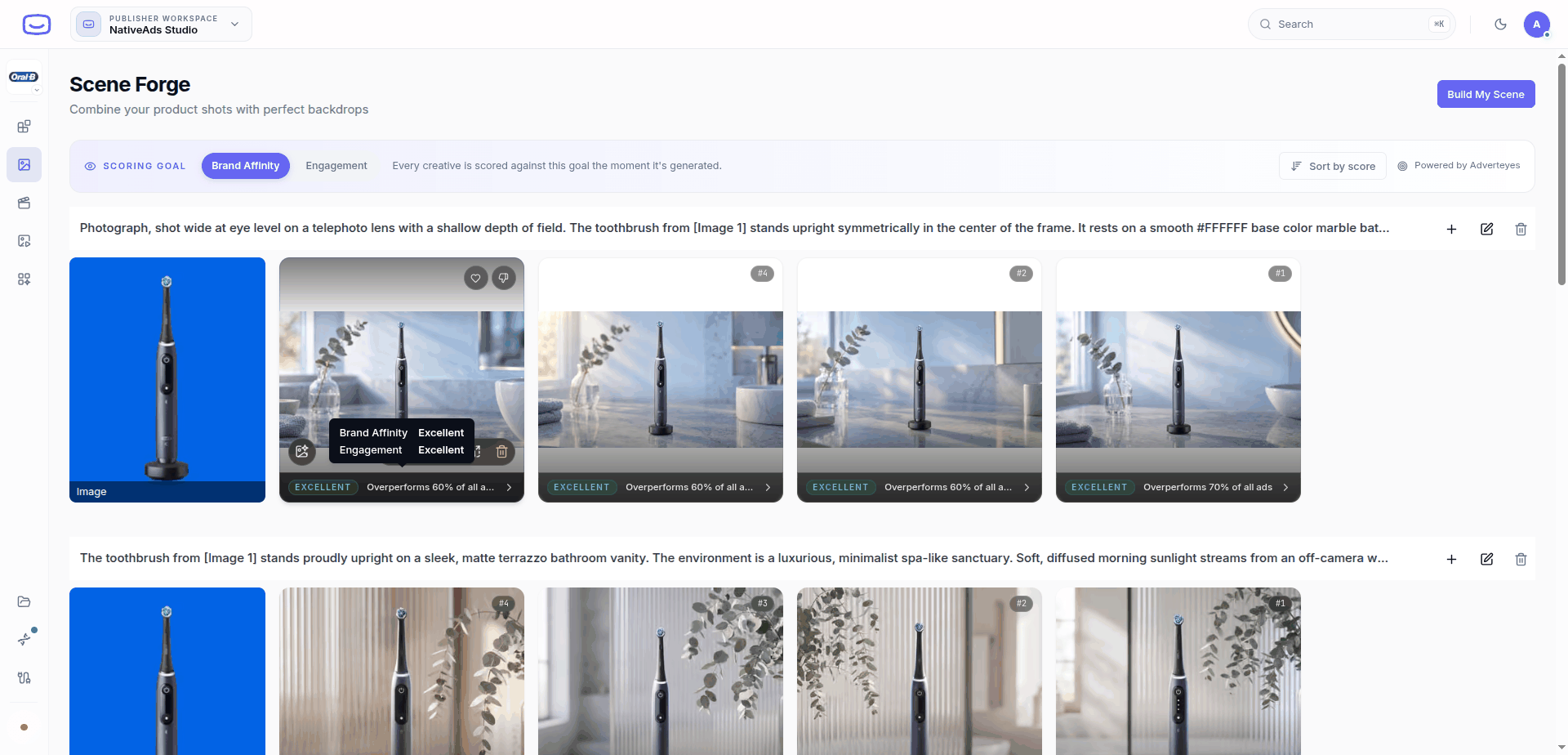
Each image shows its grade for that goal and how it ranks against other ads, e.g. Overperforms 70% of all ads. Turn on Sort by score to put the best images first. Hover a grade to see the image's grade for both goals.
| Grade | Score |
|---|---|
| Excellent | 50 and above |
| Good | 30–49 |
| Fair | Below 30 |
Step 4 — Open the insights
Click an image's score to open Adverteyes Insights:
- What's happening — a summary of the image and its strengths.
- Recommendations — the fixes most likely to raise the score, in order.
- How the score breaks down — every signal checked, what passed and what cost points. Click Show to expand it.
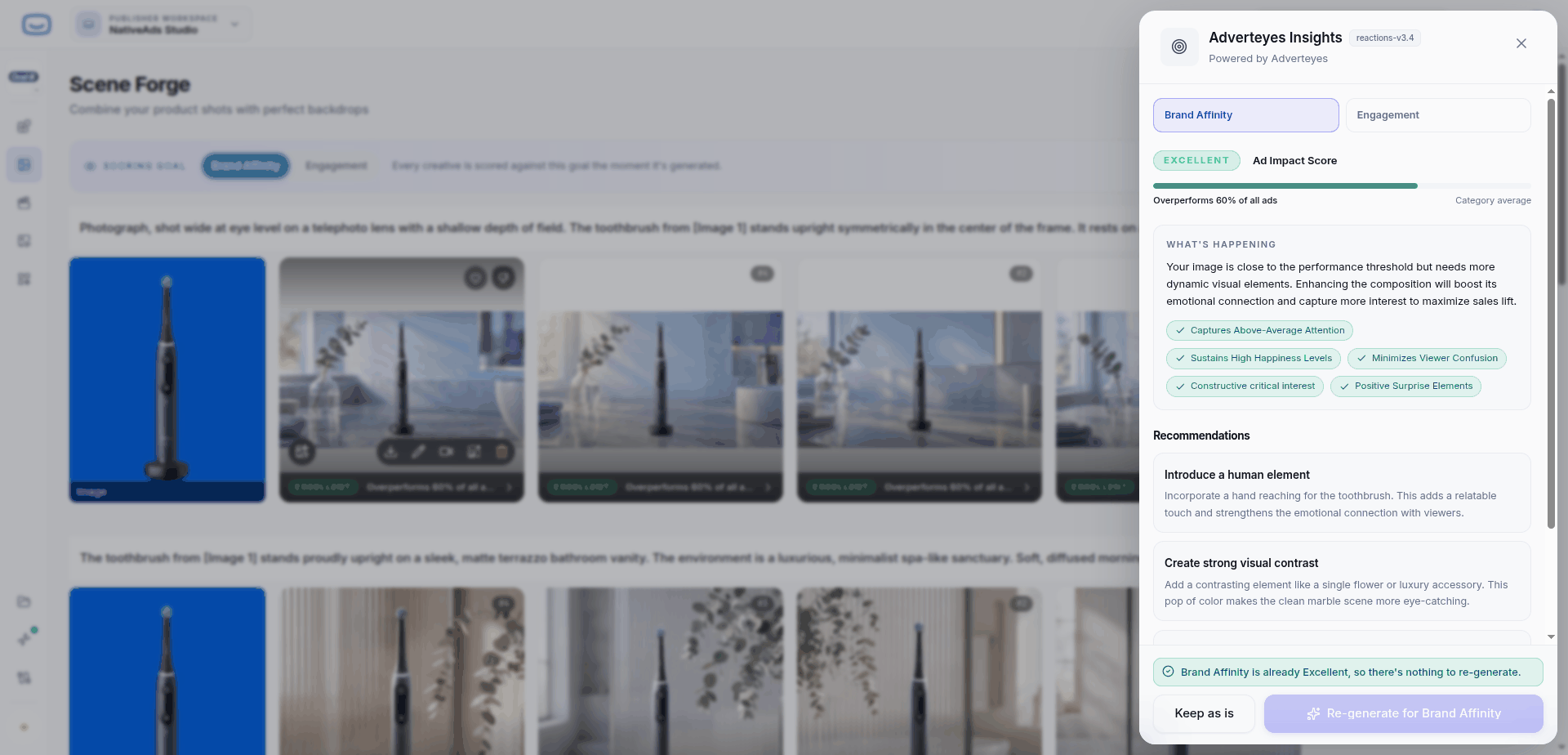
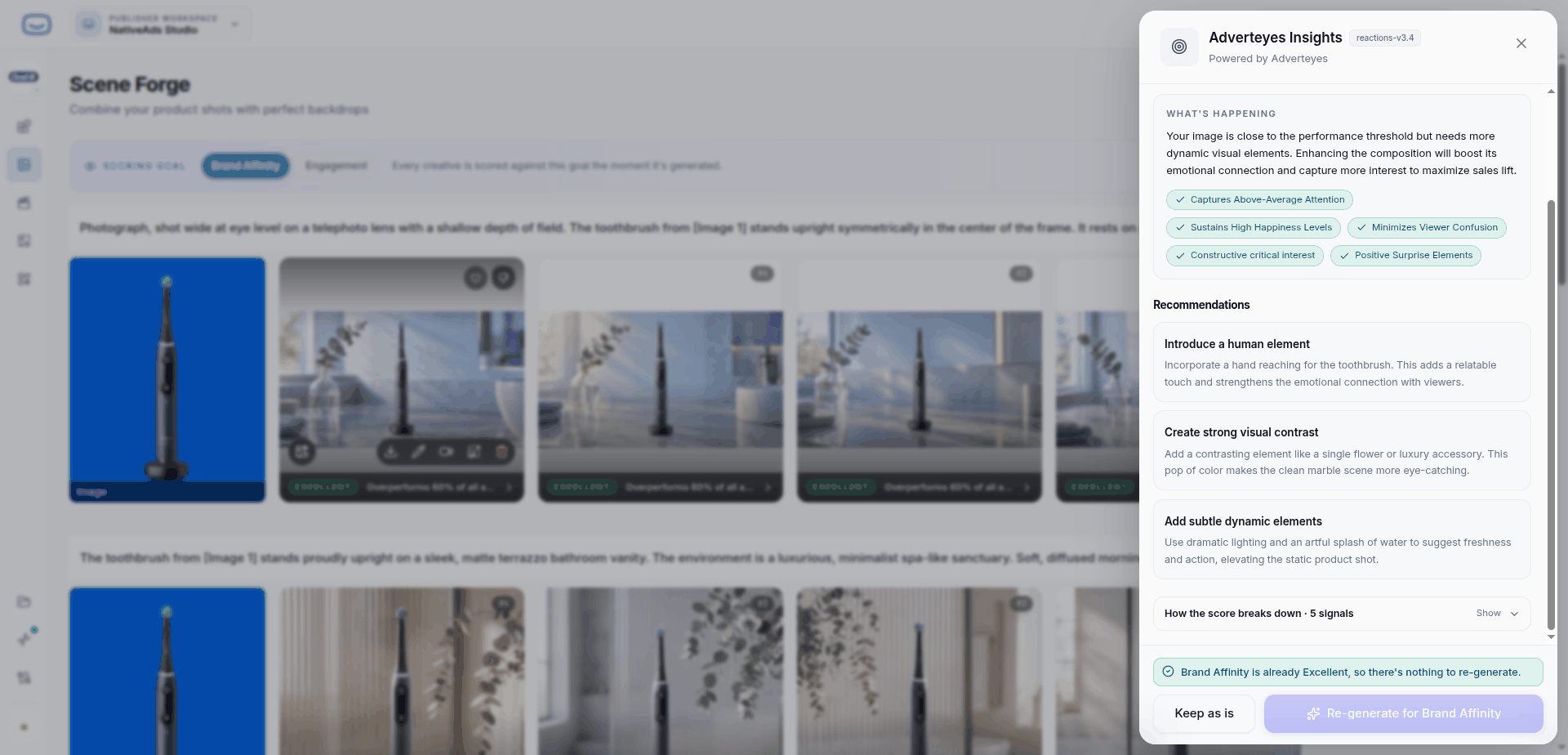
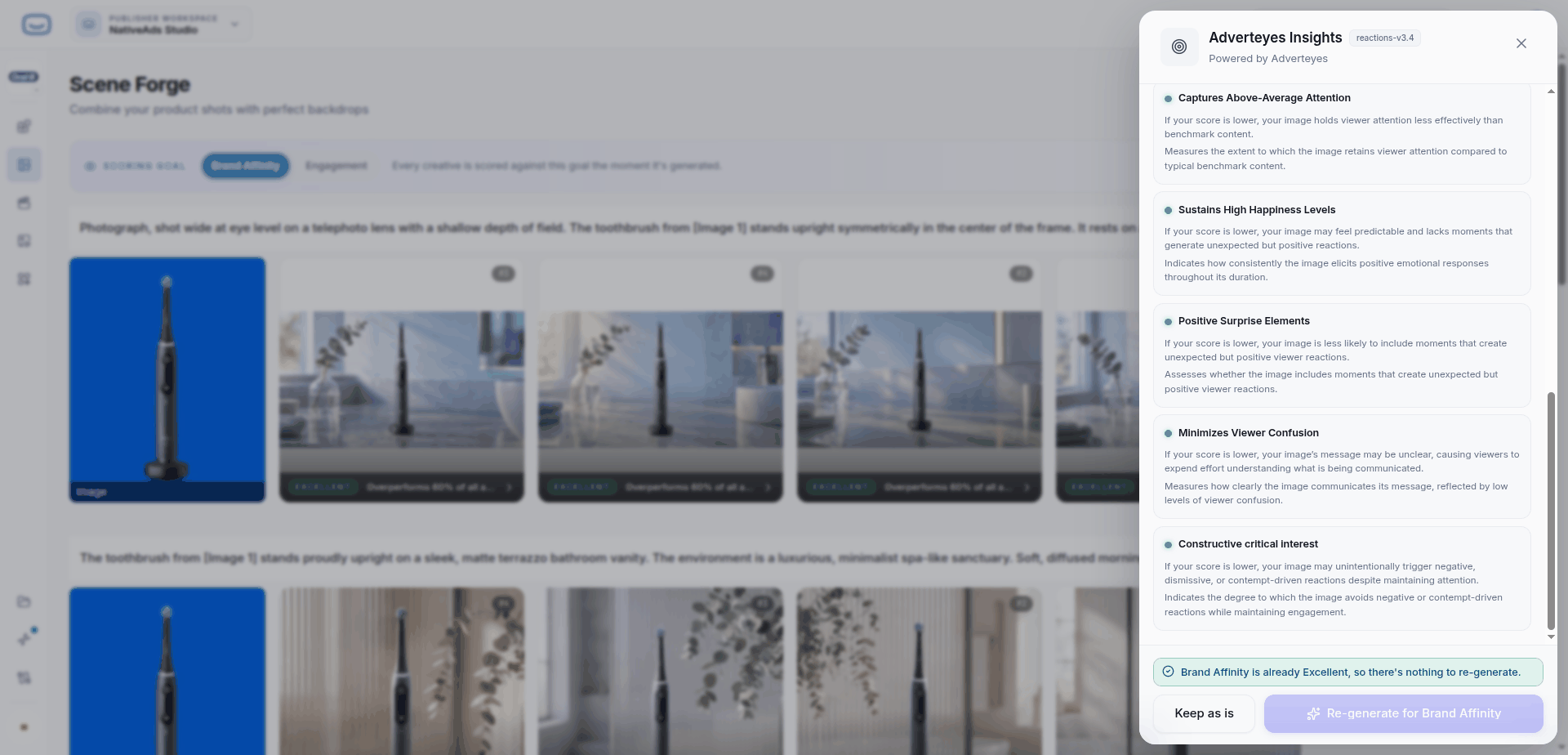
Images you add with + (Generate one more variation), from re-generation and from edits show scores only, without a summary or recommendations.
Step 5 — Re-generate for your goal
In the insights panel, click Re-generate for Brand Affinity (or Engagement). NativeAds rebuilds the prompt and scene to apply the recommendations and generates a new variation. Any manual edits to the prompt are discarded. Re-generating doesn't use a Creative Optimization.
If an image is already Excellent for the selected goal, there's nothing to re-generate — the button is disabled and a note says so. Click Keep as is to close the panel.
Each re-generation is a refinement round. Under the scene, click Show rounds to see each version, or click the original image to see how the creative evolved.
Creative Optimizations
One Creative Optimization (CO) covers one scored Scene Forge generation, or one scored extra variation added with +. Re-generating for a goal is free, and a round that can't be scored is refunded.
| Plan | Creative Optimizations per billing period |
|---|---|
| Starter | 10 |
| Pro | 50 |
| Ultra | 100 |
Your allowance resets each billing period. When you run out, you can still generate without scoring.
Best Practices
- Pick the goal before you compare — an image can be Excellent for one goal and Fair for the other.
- Read the recommendations before re-generating — they tell you what the new version will change.
- Check every round — each refinement round stays under the original scene, so you can compare them and use the one you like best.